---
title: "Create a Slackbot for Posting Mention Notifications"
description: "Example application for building a slack bot with Pulumi and Go"
url: "https://www.pulumi.com/dev/examples/aws-go-slackbot/"
image: "https://www.pulumi.com/assets/og/dev/examples/aws-go-slackbot.png"
---
# Create a Slackbot for Posting Mention Notifications
Example application for building a slack bot with Pulumi and Go
- Source on GitHub: https://github.com/pulumi/examples/tree/master/aws-go-slackbot
## Get started with this example
This example lives in the [pulumi/examples](https://github.com/pulumi/examples/tree/master/aws-go-slackbot) repo. Pull down just this directory to follow along:
```bash
git clone --filter=blob:none --sparse https://github.com/pulumi/examples pulumi-examples
git -C pulumi-examples sparse-checkout set aws-go-slackbot
cd pulumi-examples/aws-go-slackbot
```
This is an example of a Slackbot (called '@mentionbot') that posts a notification to a specific channel any time you're @mentioned anywhere, whether in various channels or via direct message. This bot is useful for when you need a time-ordered list of @mentions to go through at a later point.
Slack users can subscribe/unsubscribe from notifications easily. To receive notifications, add `@mentionbot` to a channel you want to be notified in. Then send any message to `@mentionbot` to subscribe. To stop getting messages, send a message to `@mentionbot` containing the word `unsubscribe`.
1. We set up an ApiGateway API to receive push notifications from Slack whenever important events happen.
2. The API Gateway forwards these notifications to our Lambda function, which processes the Slack events and manages subscriptions using DynamoDB.
3. The[AWS Lambda](https://aws.amazon.com/lambda/) function is created in our code. This function is called when Slack pushes a notification. The Lambda can access the other Pulumi resources created, such as DynamoDB for subscription management. If these resources are swapped out in the future (for example, using RDS instead of DynamoDB), Pulumi will make sure that the Lambda is updated properly.
4. [Pulumi Secrets](https://www.pulumi.com/docs/intro/concepts/secrets/) provides a safe way to pass important credentials (like your Slack tokens) without having to directly embed them in your application code.
First, we'll set up the Pulumi App. Then, we'll go create and configure a Slack App and Bot to interact with our Pulumi App.
## Deploy the App
> **Note:** Some values in this example will be different from run to run. These values are indicated
with `***`.
### Step 1: Create a new stack
```bash
$ pulumi stack init mentionbot
```
### Step 2: Set the AWS region
```
$ pulumi config set aws:region us-east-2
```
### Step 3: Build the handler
```bash
make build
```
### Step 4: Preview and deploy your app
Run `pulumi up` to preview and deploy your AWS resources.
```
$ pulumi up
Previewing update (mentionbot):
```
### Step 5: Create a new Slackbot
To create a new Slackbot, first go to https://api.slack.com/apps and create an account if necessary. Next, click on 'Create New App' here:

Pick your desired name for the app, and the Workspace the app belongs to. Here we choose `MentionBot`:

Once created, you will need to 'Add features and functionality' to your app. You'll eventually need all these configured:

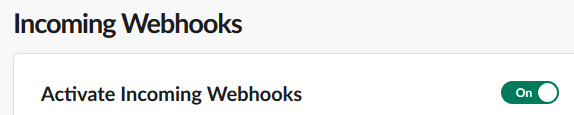
First, we'll enable 'Incoming Webhooks'. This allows your Slack bot to post messages into Slack for you:
Next, create a bot user like so:

Next, we'll enable 'Event Subscriptions'. This will tell Slack to push events to your ApiGateway endpoint when changes happen. Note that we put the Stack-Output `url` shown above (along with the `events` suffix). This corresponds to the specific ApiGateway Route that was defined in the Pulumi app. Note that Slack will test this endpoint to ensure it is accepting Slack notifications and responding to them in a valid manner. We'll also setup notifications for the events we care about. Importantly, our Slackbot will have to hear about when people mention it (for subscribing/unsubscribing), as well as hearing about all messages (so it can look for @-mentions):


Next, we'll go to 'Permissions'. Here, we can find the OAuth tokens your Pulumi App will need. Specifically, we'll need the 'Bot User OAuth Token' listed here:

Underneath this, we'll set the following Scopes defining the permissions of the bot:

Now, we're almost done. The only thing left to do is supply your Pulumi App with the appropriate secrets/tokens. We'll need the Bot OAuth token (shown above), and the 'Verification Token' (found under 'Basic Information'):

Supply these both like so:
```
$ pulumi config set --secret mentionbot:slackToken xoxb-...
$ pulumi config set --secret mentionbot:verificationToken d...
```
Next, install the Slack App into your workspace:

And we're done!
### Step 6: Interact with the Slackbot
From Slack you can now create your own private channel:

Invite the bot to the channel:

Then send it a message. Note that it may take several seconds for the bot to respond due to Slack push notification delays.

And you're set! From now on when someone from your team mentions you, you'll get a little message with a direct mention in your channel like so:

## Clean up
1. Run `pulumi destroy` to tear down all resources.
1. To delete the stack itself, run `pulumi stack rm`. Note that this command deletes all deployment history from the Pulumi console.