


Pulumi Cloud access tokens
Use access tokens to sign into the Pulumi Cloud via the CLI or automate your usage of the Pulumi Cloud using the REST API. Learn more about the REST API in the Pulumi Cloud REST API docs.
The token you use for pulumi login also authorizes the pulumi api command, which calls any REST API endpoint directly from the CLI without needing to set the Authorization header yourself.
Pulumi offers three types of access tokens:
- Personal tokens, which carry the permissions of the individual user who created them. Personal tokens are available to all Pulumi Cloud users.
- Organization tokens, which authenticate as the organization itself rather than any individual user. Actions taken with organization tokens appear in audit logs attributed to the organization. Organization tokens are available in the Team, Enterprise, and Business Critical editions.
- Team tokens, which authenticate as a specific team within an organization rather than any individual user. Actions taken with team tokens appear in audit logs attributed to the team. Team tokens are only available to Enterprise and Business Critical customers.
When using tokens, be mindful of the following security best practices:
- Organization and team access tokens are machine tokens that are not connected to a user account, and therefore should only be used in scenarios like CI/CD pipelines, where the Pulumi actions are not being performed directly by a particular user.
- Tokens can optionally be assigned an expiration period of up to two years, at which point the token will no longer be valid for any Pulumi operation. Expired tokens cannot be refreshed or reactivated. It’s strongly recommended that you assign an expiration to your token to encourage token rotation and improve your organization’s security posture. Organization administrators can make expiries mandatory with an access token expiry policy.
- Access tokens can create stacks if the organization’s access management settings permit all members to do so, or if the token’s assigned role includes the
stack:createscope. Admin organization tokens always have this capability. A stack created with a token carries an automatic creator grant of the Stack Admin permission set, including deletion. That grant is held by the machine identity the token authenticates as, not by the person who created the token, and it persists for as long as the stack exists. To keep a long-lived token from accumulating Stack Admin on every stack it creates, have the automation transfer stack ownership to a break-glass user or team, or delete the automatic entry from the stack’s Access tab, once the stack exists. See RBAC for more on how org-wide settings and role scopes interact.
Personal access tokens
Personal access tokens carry the same permissions as your Pulumi Cloud user. This includes all organization memberships, team memberships, and role assignments that apply to you across every Pulumi Cloud organization you belong to.
Creating personal access tokens
To create an access token:
- Select Personal access tokens from the user menu.
- Select Create token, which will open a dialog.
- Optionally, you may assign a description for additional context.
- Choose an expiration period of up to two years. You may also choose that the token does not expire.
- Select Create token in the dialog to create the token.
It is strongly recommended that you choose an expiration period for all access tokens you create.
Deleting personal access tokens
To delete an access token:
- Select Personal access tokens from the user menu.
- Select Delete token from the 3-dot menu at the end of the table row.
Organization access tokens
Organization tokens authenticate as the organization itself rather than any individual user. They are the recommended token type for any automated or non-interactive workflow, including:
- CI/CD pipelines: deploying infrastructure updates without tying operations to an individual’s account.
- Drift detection: monitoring stacks across the organization for configuration drift.
- Policy enforcement: running compliance checks or applying policy packs programmatically.
- Org-level reporting: querying stack state or resource data for dashboards and auditing.
Unlike personal tokens, organization tokens are scoped to a single organization and are not affected when team members join or leave. By assigning a custom role with only the scopes your automation needs, you can follow the principle of least privilege and limit the blast radius of any single token.
What organization tokens can do
An organization token can do anything its assigned RBAC role permits. By assigning different roles, you can scope a token to exactly the operations your automation needs — for example, a token that can only read stack state, or one that can deploy updates to a specific set of stacks. If no role is assigned at creation time, the token receives the organization’s default member role.
Actions taken by organization tokens appear in audit logs attributed to the organization rather than an individual user, with the token’s unique name surfaced in every event.
Who can manage organization tokens
Any organization admin can create, view, and delete organization tokens via Settings > Access Management > Access Tokens. Tokens are not owned by the admin who created them — if that person leaves the organization, other admins retain full access. Each token’s name must be unique across all organization and team tokens in the organization, including deleted tokens, so that tokens can be reliably identified in audit logs and incident response.
Deleting a token immediately revokes its access; all further operations using it will fail as unauthorized. The token name is permanently reserved after deletion to preserve audit log integrity.
Team access tokens
Team tokens are machine tokens scoped to the resources and permissions of a specific team. They are useful for automated processes (like CI/CD pipelines) that should only be able to access the infrastructure a particular team owns. This avoids the need to use a personal token from any individual team member.
What team tokens can do
A team token’s effective permissions are the union of all roles assigned to that team, evaluated at the time of each request. If the team’s role assignments change — for example, the team is granted access to a new set of stacks — the token’s capabilities update automatically without any token recreation. This makes team tokens a good fit for long-lived automation where access needs may evolve over time.
As with organization tokens, team token activity is recorded in audit logs with the token’s name, keeping actions traceable without exposing individual users.
Who can manage team tokens
Organization admins and team admins can create and delete team tokens. Tokens are found under the team’s page (Teams > select a team > Access Tokens) and are not owned by the admin who created them. Each token name must be unique across all organization and team tokens in the organization, including deleted tokens.
Deleting a token immediately revokes its access. The token name is permanently reserved after deletion to preserve audit log integrity.
Access token expiry policy
Organization administrators can enforce a maximum expiry on the access tokens used against their organization. When a policy is set, personal, organization, and team tokens must have an expiration date, and the time remaining until that expiration must be within the policy’s cap, for requests against the organization to succeed.
Setting a policy
To set an access token expiry policy:
Navigate to Settings > Access Management and select the Other tab.
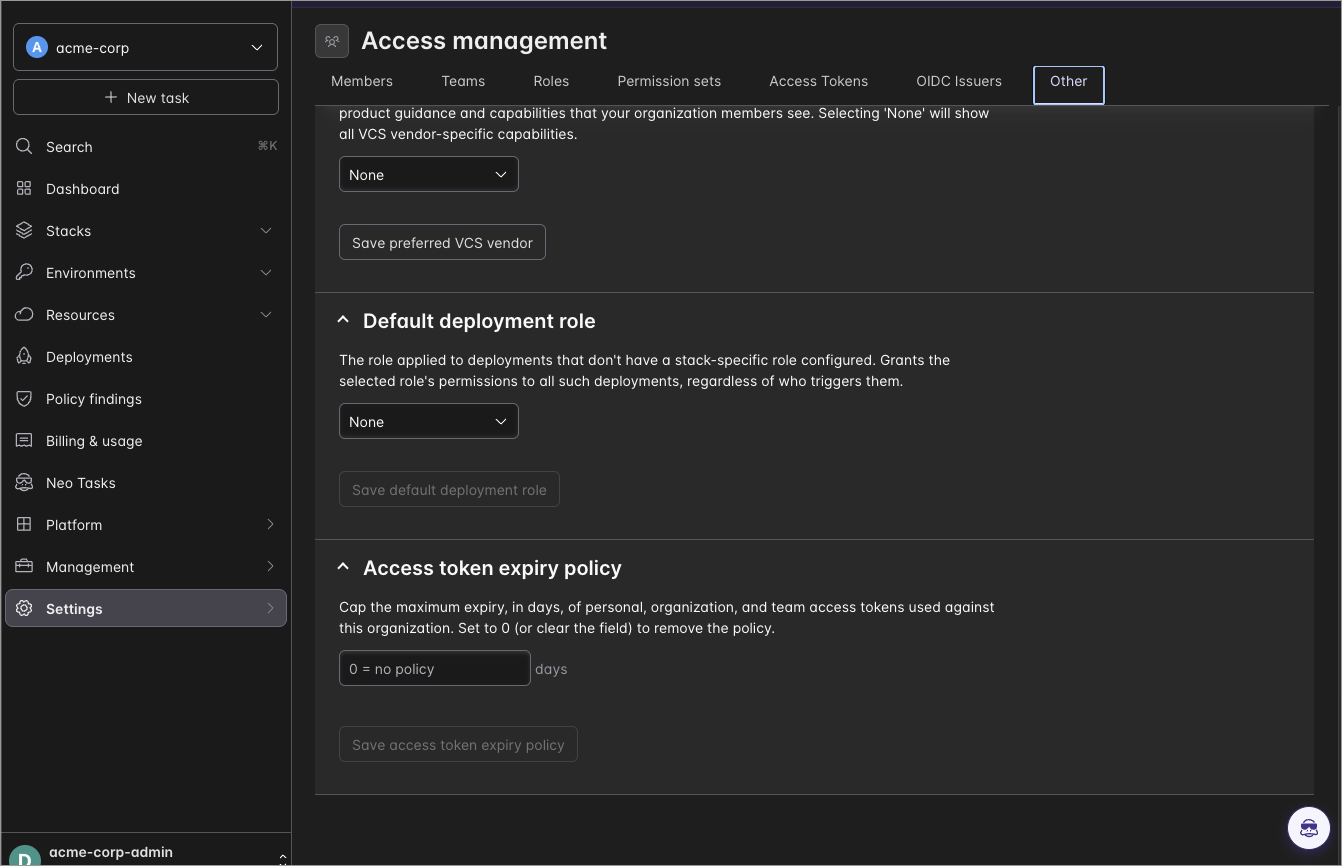
Under Access token expiry policy, enter the maximum expiry in days (between 1 and 3650, or up to 10 years).
Optionally, select Preview affected tokens. The preview lists the organization and team tokens that would fail to authenticate under the proposed cap, by name and creator (the first five, plus a count of any others):
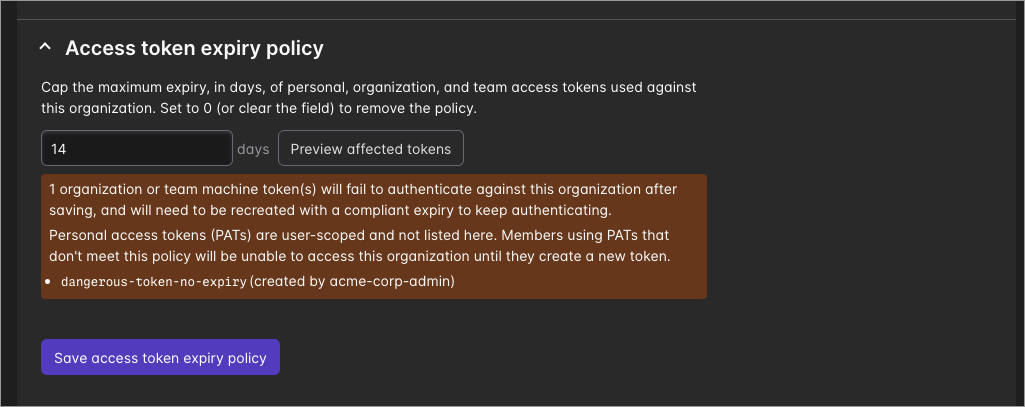
Select Save access token expiry policy.
To remove the policy, set the value to 0 (or clear the field) and save. Policy changes are recorded in the organization’s audit logs. While a policy is active, the Access Tokens tab shows a banner with the current cap and an Edit policy shortcut to this setting.
How compliance is evaluated
A token complies with the policy if it has an expiration date and its remaining lifetime — the time between now and its expiration — is within the policy maximum. Compliance is evaluated on every request, not just when the token is created:
- A token that never expires violates any policy.
- A token created with a long expiry becomes compliant once its remaining lifetime falls within the cap. For example, under a 30-day policy, a token that expires 20 days from now is compliant even if it was originally created with a one-year expiry.
What the policy affects
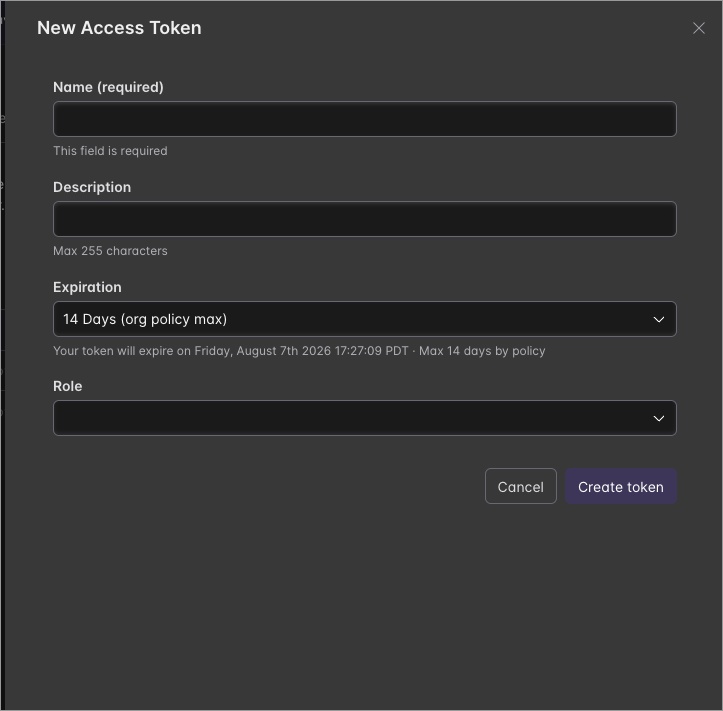
Organization and team tokens must be created with a compliant expiry once a policy is in place. The token creation dialog caps the expiry picker at the policy maximum, and the API rejects creation requests that exceed it or omit an expiry. Existing tokens that don’t meet the policy stop authenticating against the organization and must be recreated with a compliant expiry.
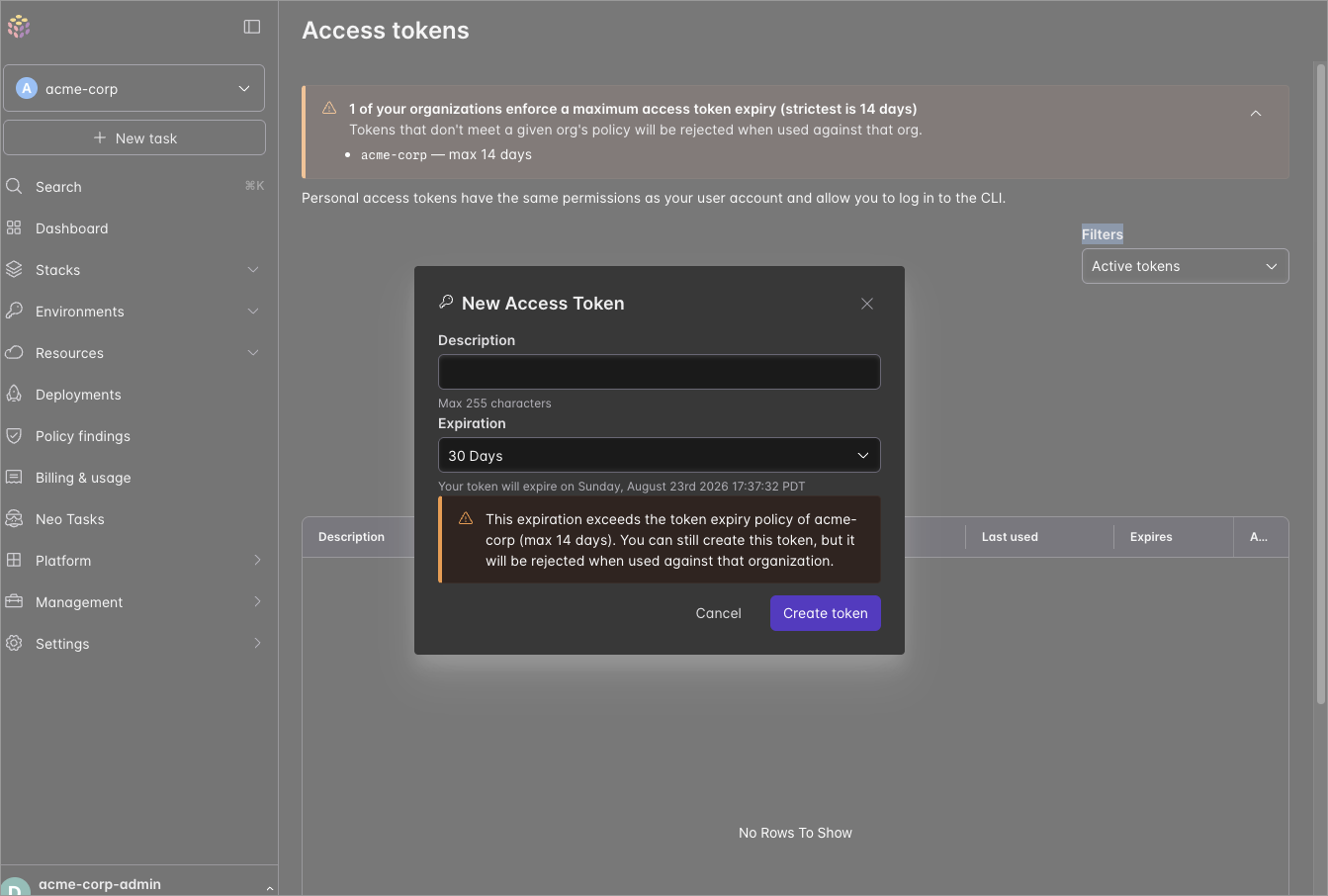
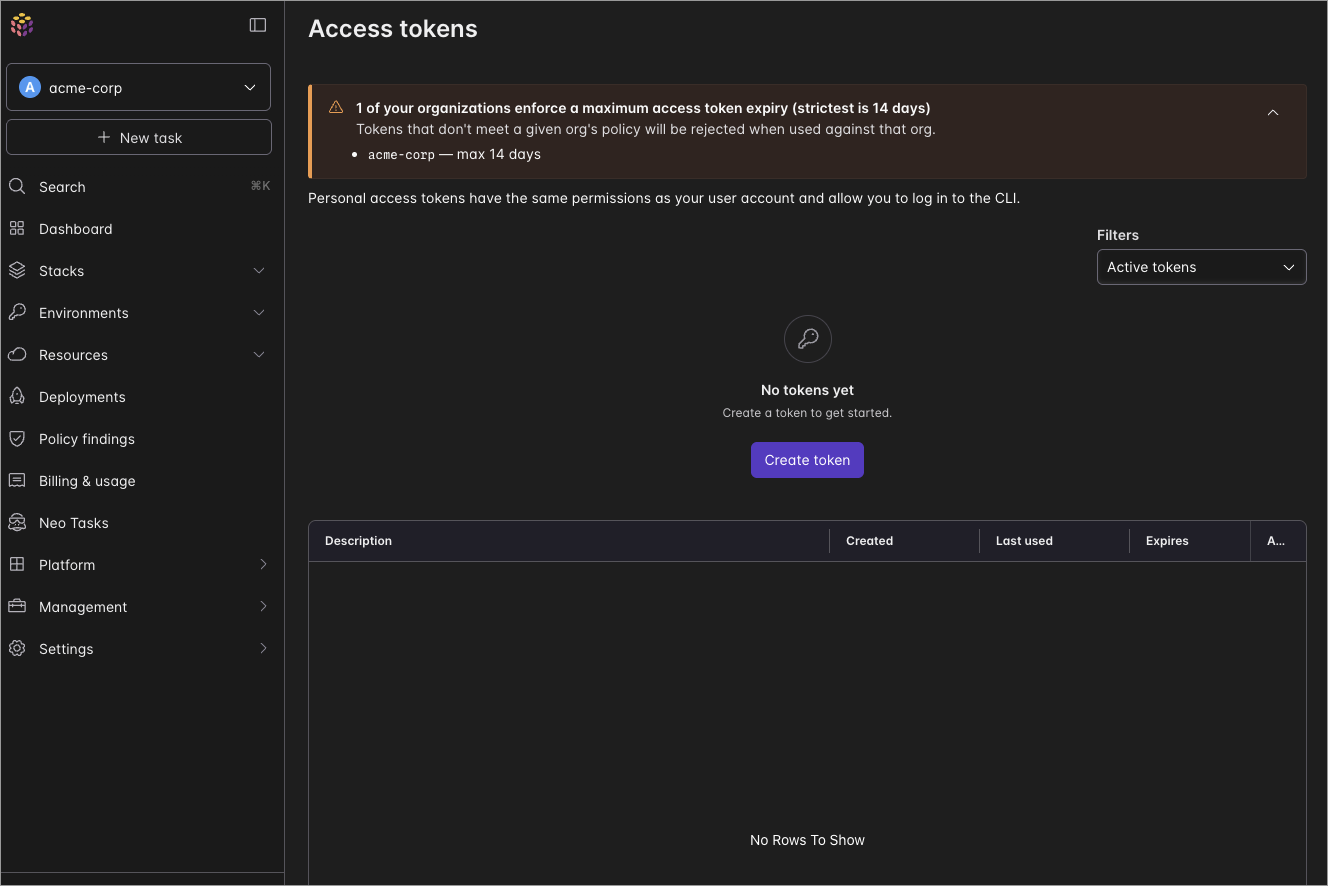
Personal tokens are user-scoped and span all of a user’s organizations, so they can’t be blocked at creation. Instead, requests made with a non-compliant personal token against an organization that enforces a policy are rejected, and the member must create a new token with a compliant expiry to regain access to that organization. When a member creates a personal token, the dialog warns them if the chosen expiry doesn’t meet the policy of an organization they belong to, and the member’s Personal access tokens page summarizes the strictest policies across their organizations.
Web console sessions are unaffected, as are short-lived tokens issued through OIDC token exchange and internally issued credentials such as deployment agent pool tokens.
Requests rejected by the policy receive a 403 Forbidden response whose message names the organization and its policy maximum, so it’s clear why the request was refused and how to fix it: generate a new token whose expiry meets the policy. For example, a CLI operation using a non-compliant token fails with:
error: could not create stack: [403] The `acme-corp` organization enforces a max access token expiry of `14` days that your current token does not meet. Please generate a new token with a TTL meeting your org's threshold to perform this request.
Legacy organization token types
Before role assignment was available for organization tokens, organization tokens were created with one of two fixed permission levels:
Standard organization tokens had member-level permissions — they could perform read and write operations within the organization but could not manage members, modify organization settings, or perform other administrative actions. This is equivalent to assigning the built-in Member role to an organization token today.
Admin organization tokens had full administrator-level permissions — they could perform any operation an organization administrator can perform, except creating or deleting other organization tokens. This is equivalent to assigning the built-in Admin role to an organization token today.
Both token types continue to work. The admin/standard distinction maps directly onto the built-in Admin and Member roles in the current RBAC system. When creating new organization tokens, you can reproduce these permission levels by assigning the corresponding built-in role. For new automation, prefer assigning a custom role instead — custom roles let you follow the principle of least privilege by granting only the scopes your automation actually needs.
OIDC issued tokens
OIDC-issued access tokens generated in CI/CD workflows (such as GitHub Actions) do not receive admin privileges by default. To perform operations that require elevated access—such as creating or deleting stacks—you must explicitly request the admin scope when exchanging the OIDC token. For how to register and configure an issuer for these tokens, see OIDC Issuers.
For example:
{
  "provider": "github",
  "audience": "pulumi",
  "scope": "admin"
}