Redis Enterprise Cloud AWS example
A minimal TypeScript Pulumi program
This example lives in the pulumi/examples repository. Check out just this directory to use it:
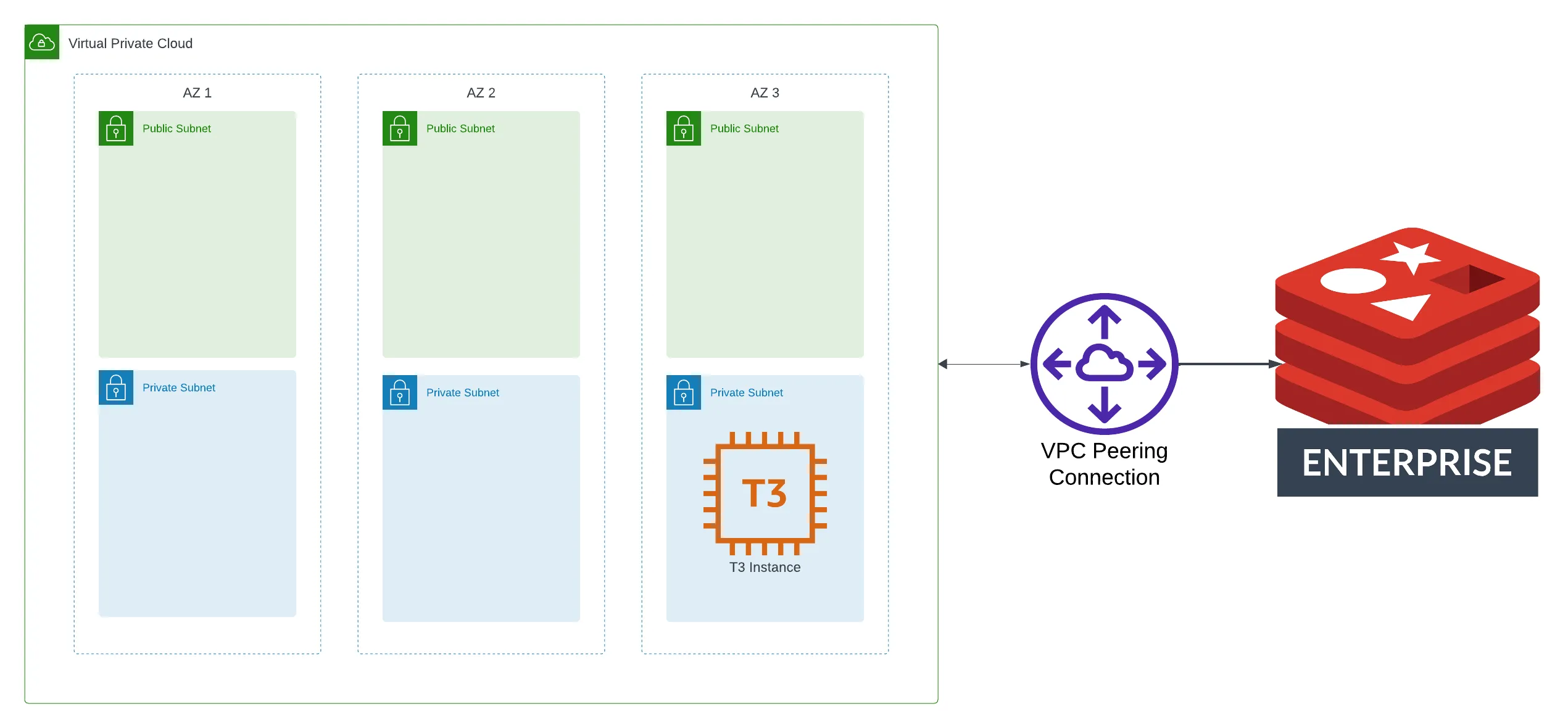
git clone --filter=blob:none --sparse https://github.com/pulumi/examples pulumi-examplesgit -C pulumi-examples sparse-checkout set redis-cloud-aws-tscd pulumi-examples/redis-cloud-aws-tsThis example contains code that creates a Redis Enterprise Cloud cluster and connects it to an AWS VPC via VPC Peering. This stack also includes an EC2 instance with SSM Session Manager that can run Redis commands to verify connectivity to the Redis cluster.
Prerequisites#
- Install Pulumi
- Configure the Redis Cloud provider
- Ensure you have a payment method specified in the Redis Enterprise Cloud console.
- Configure AWS credentials
- Install Node.js
Deploying the example#
-
Install dependencies:
Terminal window npm install -
Set configuration values for your Redis Cloud payment information:
Terminal window pulumi config set cardType <YOUR-CARD-TYPE> # e.g. Visa (capitalization matters)pulumi config set lastFourNumbers 1234 -
If you are using an availability zone other than
us-east-1, you will need to setpreferredAz, e.g. if you’re usingus-west-2:Terminal window pulumi config set aws:region us-west-2 # Not necessary if your default AWS region is e.g. us-west-2pulumi config set preferredAz usw2-az1 # This step is necessary is your default or selected region is not us-east-1 -
Deploy the architecture:
Terminal window pulumi up
Testing the architecture#
-
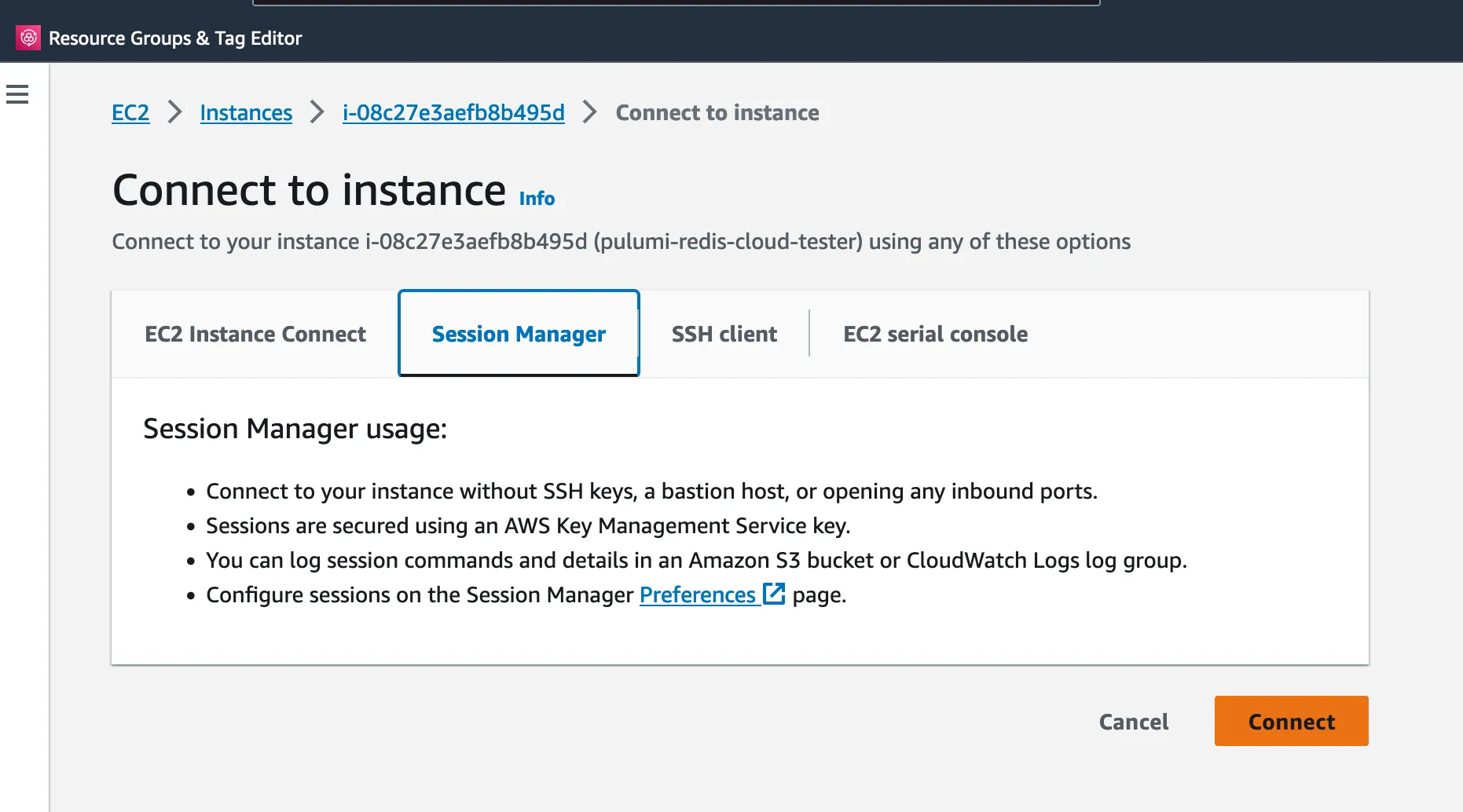
In the AWS Console, find the EC2 instance named
pulumi-redis-cloud-tester, and connect to it via SSM Systems Manager: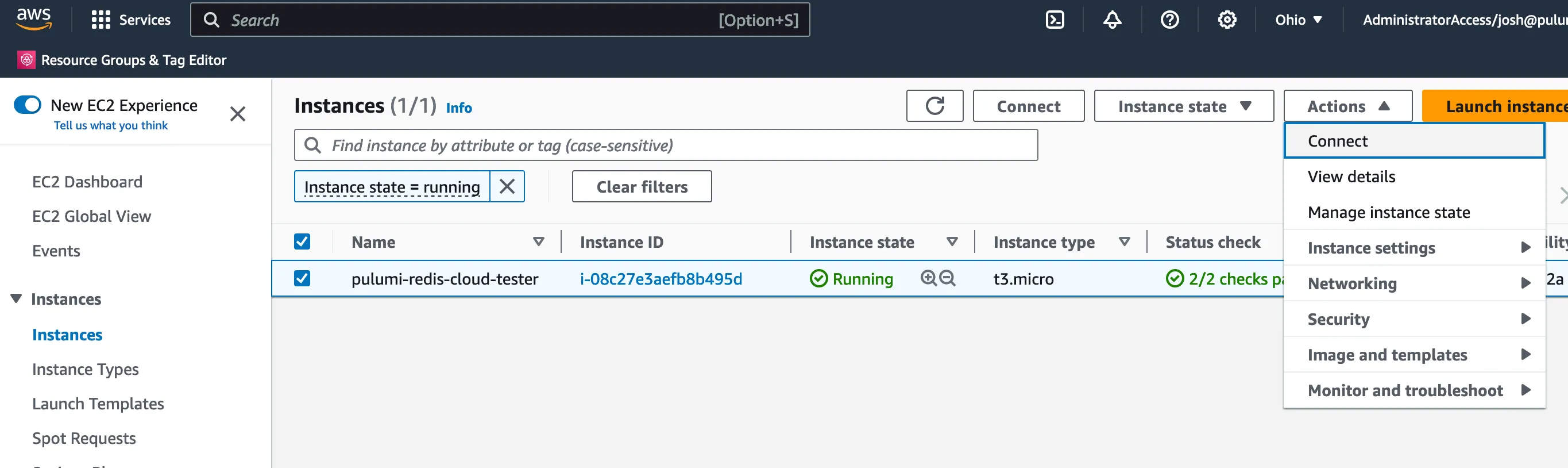
-
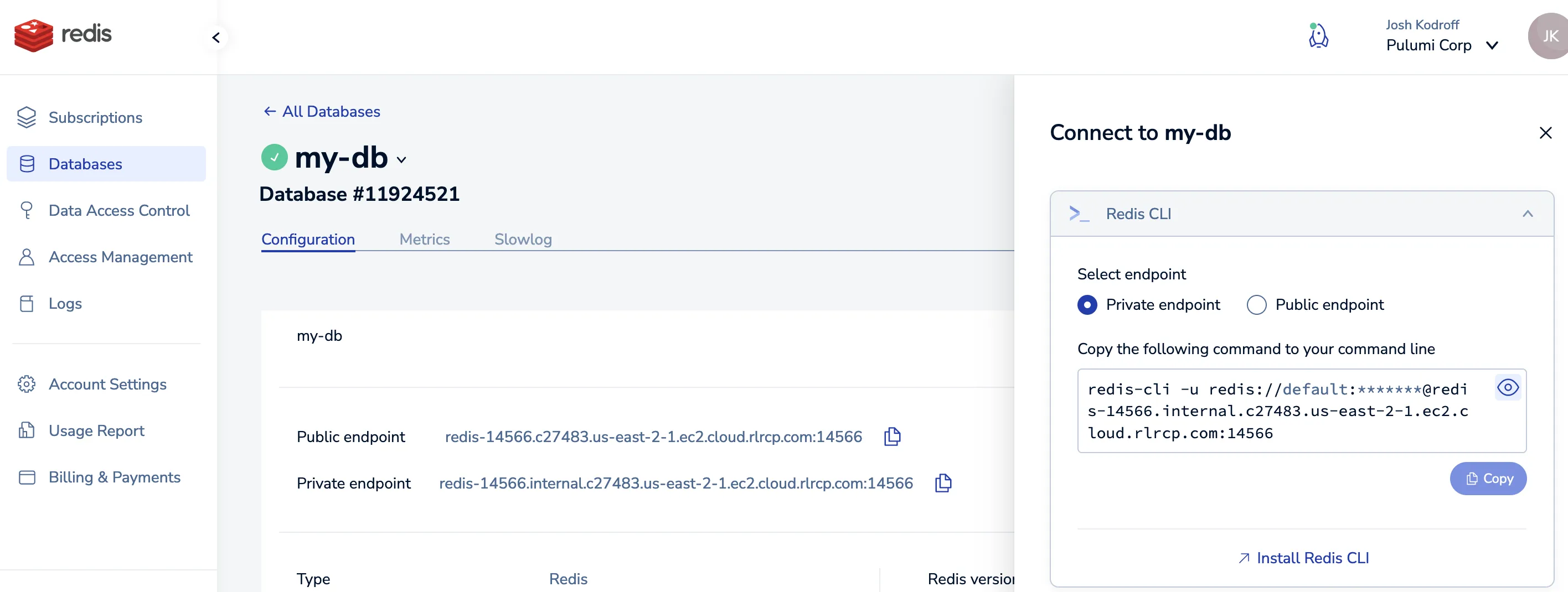
In the Redis Cloud console, locate your database, and select “Connect”:
-
In the connection dialog, copy the connection info for the Redis CLI:
-
Paste the command into the Systems Manager shell prompt, which will connect you to the Redis instance. From there you can run Redis commands like
INCRthat will write to the Redis cluster:
Cleaning up#
- Run
pulumi destroyto tear down all resources. - To delete the stack itself, run
pulumi stack rm. Note that this command deletes all deployment history from the Pulumi Cloud console.
