Permission Sets
Permission sets in Pulumi Cloud are predefined bundles of scopes that are commonly used together. They provide a convenient way to grant related access rights to an entity (resource) or set of entities (resources).
Entities
An entity is a Pulumi object that can have permission sets granted on it.
In Pulumi Cloud’s authorization model, we use the term “entity” instead of “resource” to refer to such objects. This is because “resource” already has a specific meaning within Pulumi (referring to cloud infrastructure resources). We use the term “entity” to avoid confusion when discussing authorization.
Entity types
An entity type is a category of resources that can be protected by the RBAC system. In Pulumi Cloud, entity types include stacks, environments, insights accounts, and organization settings. Each entity type has its own set of associated permission sets and can be managed independently through the RBAC system.
When creating a permission set, it must be of a specific entity type, and only include scopes that are also of that entity type.
There are four qualified entity types in Pulumi, these are:
- Stacks: For all operations that affect stacks. Includes:
- Stack updates
- Stack configurations
- Deployment settings
- Stack tags and annotations
- Stack webhooks
- Stack schedules
- Environments: For all operations that affect environments. Includes:
- Environment configurations
- Environment secrets
- Environment schedules
- Environment webhooks
- Environment versions
- Insights accounts: For all operations that affect insights accounts. Includes:
- Insights accounts
- Policy evaluations
- Scan configurations
- Results and reports
- Organization settings: For scopes and permission sets that operate at the org level, like billing settings or managing third-party integrations. Includes:
- Organization settings
- Member management
- Billing and usage
- Audit logs
- Integration configurations
stack:create, team:create) that you grant through a role. These are separate from the organization-wide access toggles at Settings > Access Management (e.g. “Members can create stacks”), which apply unconditionally to all members regardless of their role. See the RBAC overview for details.Default permission sets
Pulumi Cloud provides several default permission sets that you can use to quickly get started:
Stack permission sets
| Permission set | Description | Included Scopes |
|---|---|---|
Stack Read | Basic read-only access to stacks. Allows for running previews. | stack:read, stack:export, stack:encrypt, stack:decrypt, stack_deployment:read, stack_deployment_settings:read, stack_access:read, stack_schedule:read |
Stack Write | Ability to update stack configurations and run stack updates. | Stack Read, + stack:import, stack:cancel_update, stack:write, stack_deployment_settings:write, stack_deployment_settings:encrypt, stack_deployment_cache:read, stack_tags:update, stack_schedule:update, stack_schedule:create, stack_schedule:pause, stack_schedule:resume, stack_schedule:delete, stack_deployment:create, stack_webhook:create, stack_webhook:update, stack_webhook:delete, stack_webhook:read |
Stack Admin | Grants full control over stack operations. | Stack Write, + stack:delete, stack_access:update, stack:transfer, stack:rename |
Environment permission sets
| Permission set | Description | Included Scopes |
|---|---|---|
Environment Read | Basic read-only access to environments. | environment:read, environment:rotate_history, environment_version:read, environment_schedule:read, environment_tag:read |
Environment Open | Ability to read the environment and access environment secrets. | Environment Read, + environment:open, environment:clone, environment_version:open, environment_version:read |
Environment Write | Ability to modify environment settings. | Environment Open, + environment:write, environment:rotate, environment_version:create, environment_version:update, environment_version:delete, environment_version:retract, environment_tag:create, environment_tag:update, environment_tag:delete, environment_schedule:create, environment_schedule:update, environment_schedule:pause, environment_schedule:resume, environment_schedule:delete, environment_webhook:read, environment_webhook:create, environment_webhook:update, environment_webhook:delete |
Environment Admin | Full control over environment operations. | Environment Write, + environment:delete |
Insights account permission sets
| Permission set | Description | Included Scopes |
|---|---|---|
Account Read | Basic read-only access to insights accounts. | insights_account:read, insights_account_scan:read, insights_account_access:read |
Account Write | Ability to modify insights accounts. | Account Read, + insights_account:update, insights_account:scan, insights_account_scan:update, insights_account_scan:cancel, insights_account_scan:pause, insights_account_scan:resume |
Account Admin | Full control over insights accounts. | Account Write, + insights_account:delete, insights_account_access:update |
Custom permission sets
Creating custom permission sets
To create a custom permission set, you must be an organization admin.
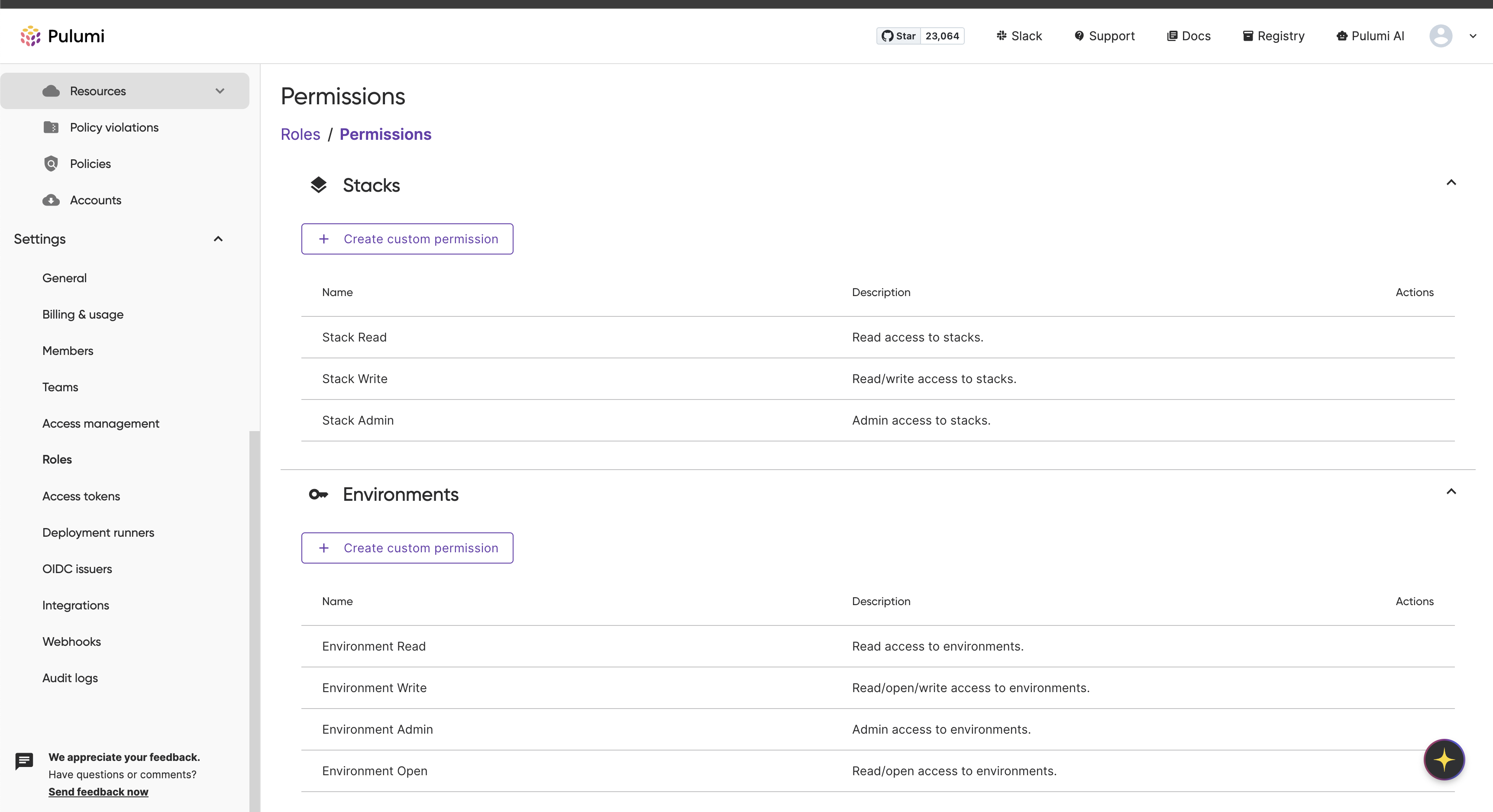
Visit Settings > Access Management and select the Permission sets tab.
 .
.
To create a new permission set, click Create custom permission set within the associated entity group.
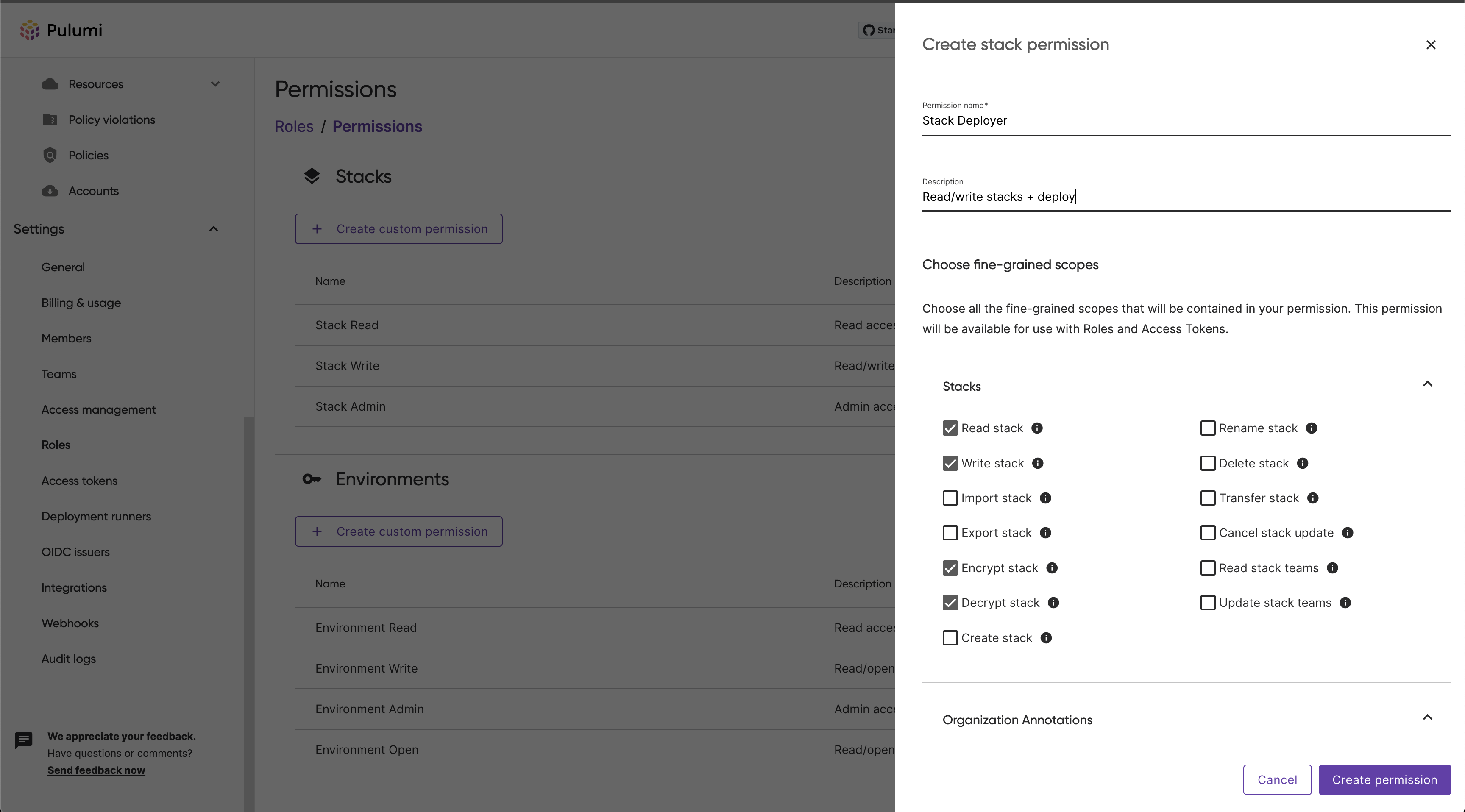
You will need to provide a unique name for the permission set. Optionally, but recommended, you can provide a description to contextualize the permission set and its purpose.
 .
.
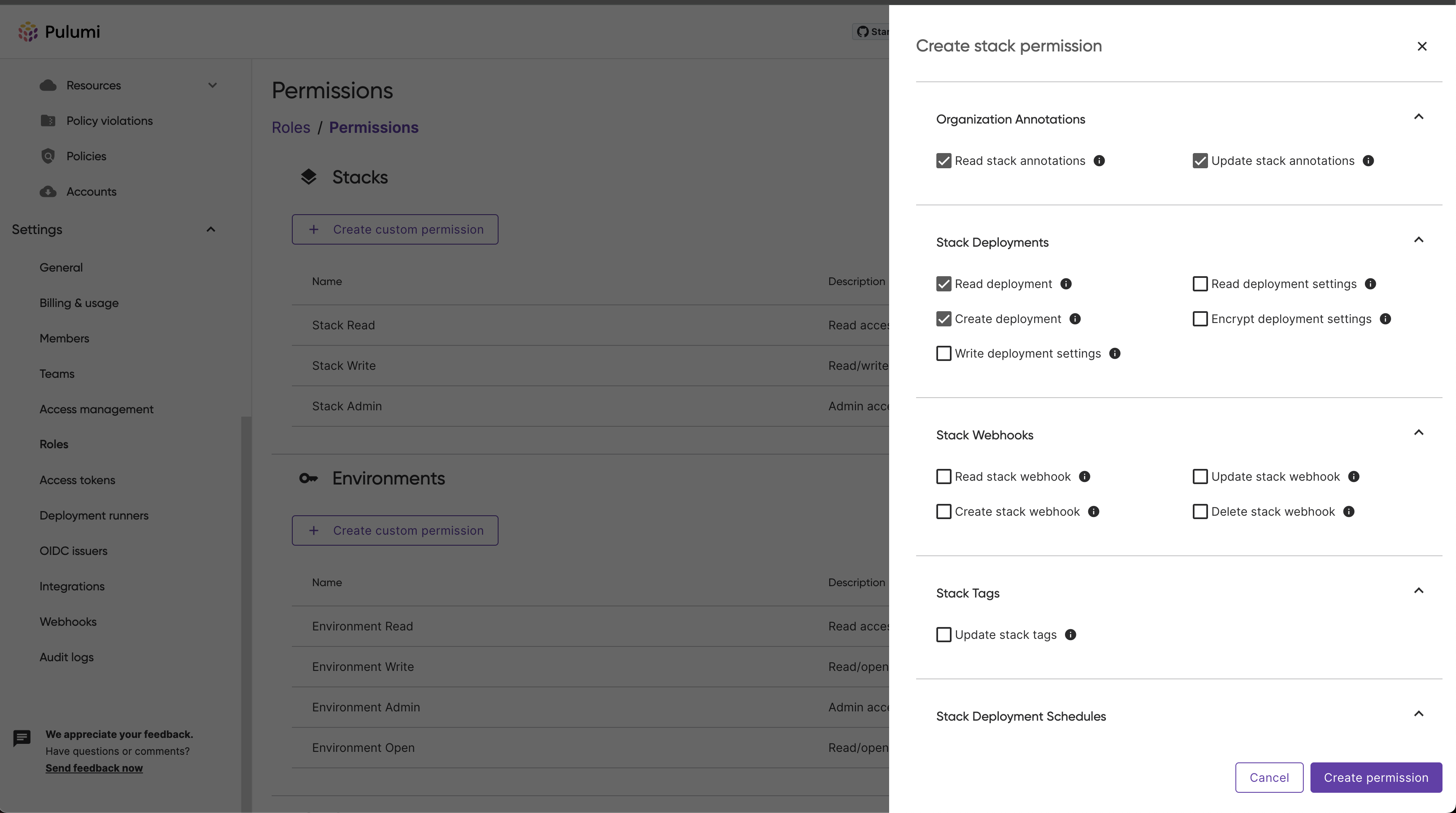
You can then select the scopes you would like to bundle within this permission set.
 .
.
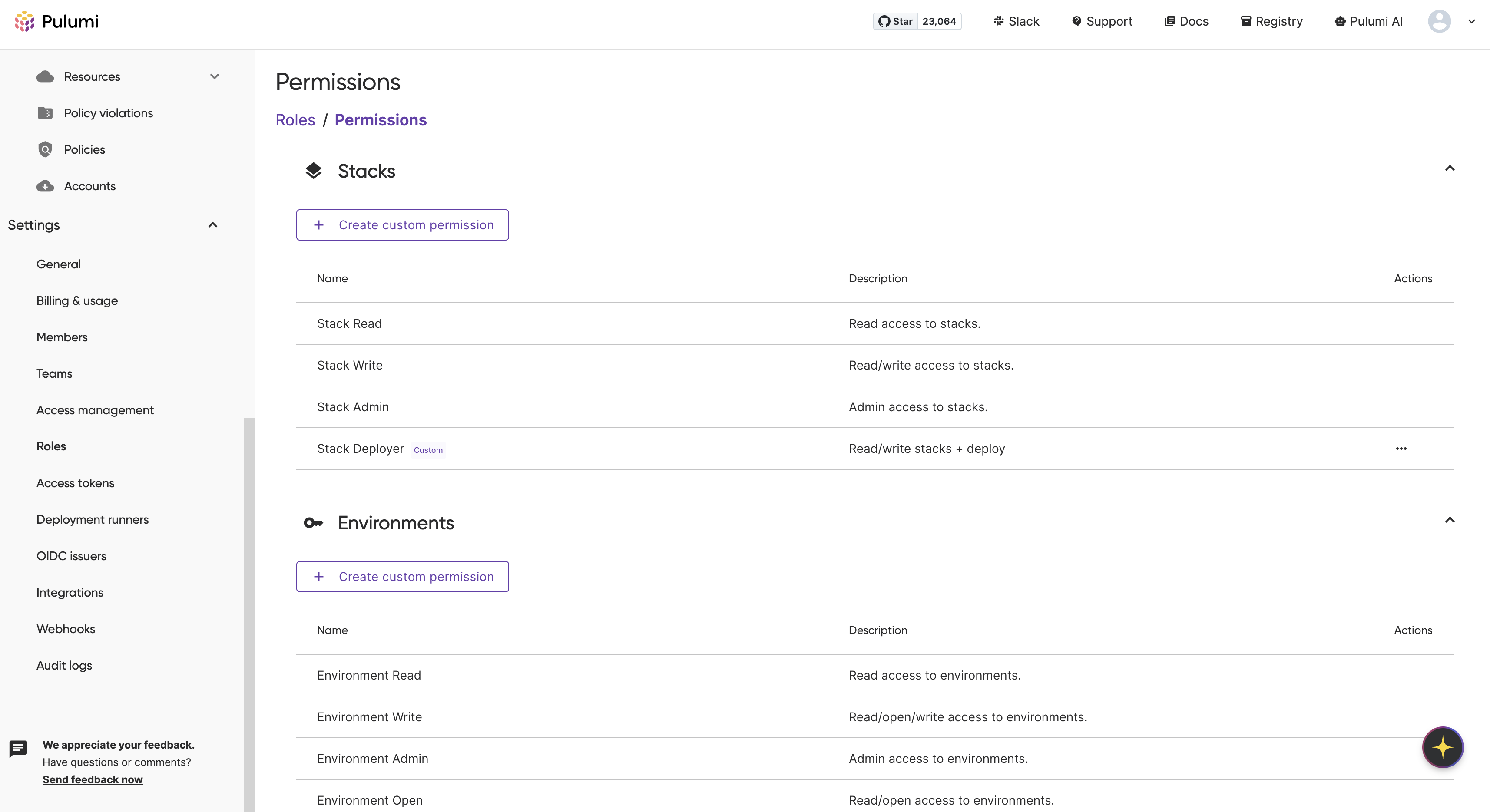
Once you’ve selected the preferred scopes, click Create permission set. The panel will close and you should see your new permission set on the permission sets page.
 .
.
You can now assign this custom permission set to roles within your organization.
Related resources
Thank you for your feedback!
If you have a question about how to use Pulumi, reach out in Community Slack.
Open an issue on GitHub to report a problem or suggest an improvement.