SAML: Configuring OneLogin
This guide walks you through configuring OneLogin as a SAML SSO identity provider (IdP) for Pulumi Cloud.
Creating the OneLogin application
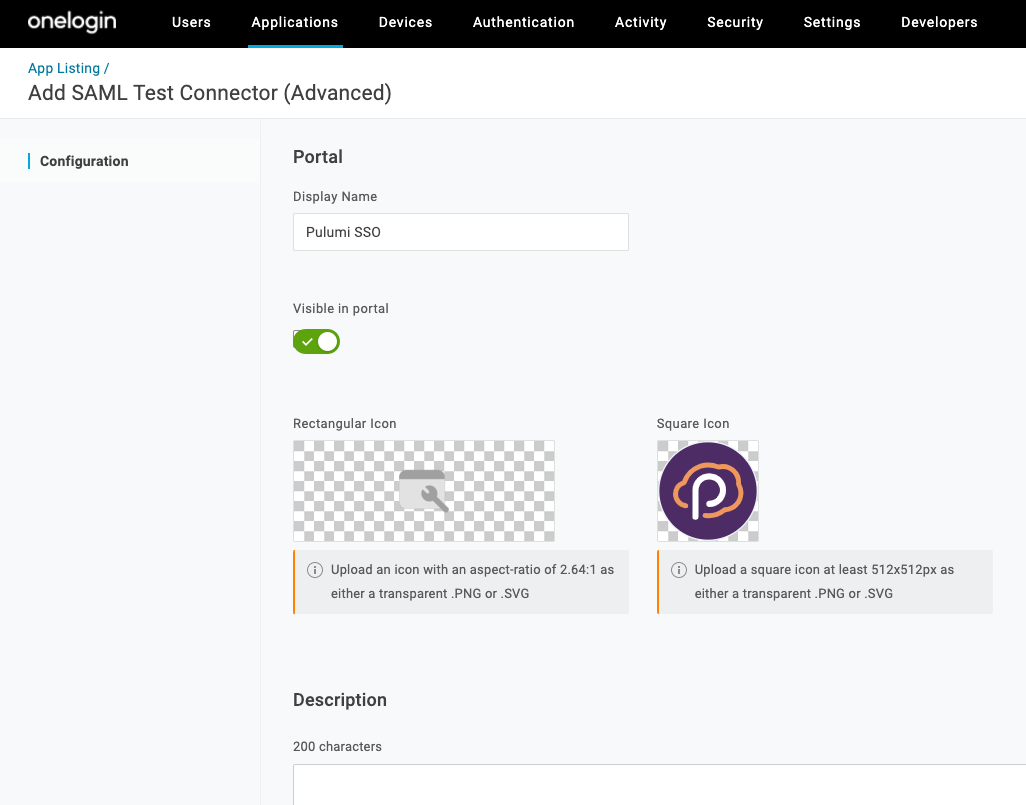
The first step is to create a new OneLogin Application for Pulumi SSO:
From the OneLogin Administration portal, go to the Applications page and select the Add App button.
Search for
SAML Custom Connector (Advanced)and select it.
Enter a Display Name and optionally a logo. See Pulumi Logos.
Select Save.
Configuring the OneLogin application
Now configure the OneLogin Application with the SAML settings for Pulumi SSO.
Configure SAML URLs
Select the Configuration view for the application and enter/confirm the values in the following table.
The values you need to use are dependent upon your Pulumi organization name. Be sure to replace acmecorp with your actual organization name.
| Configuration Settings | Value |
|---|---|
| Relay State | https://api.pulumi.com/login/acmecorp/sso |
| Audience (EntityID) | https://api.pulumi.com/login/acmecorp/sso/saml/metadata |
| Recipient | https://api.pulumi.com/login/acmecorp/sso/saml/acs |
| ACS Consumer URL Validator | .* |
| ACS Consumer URL | https://api.pulumi.com/login/acmecorp/sso/saml/acs |
| SAML initiator | OneLogin |
| SAML nameID format | Email |
| SAML issuer type | Specific |
| SAML signature element | Response |
| SAML encryption method | TRIPLEDES-CBC |
EmailAddress or Persistent.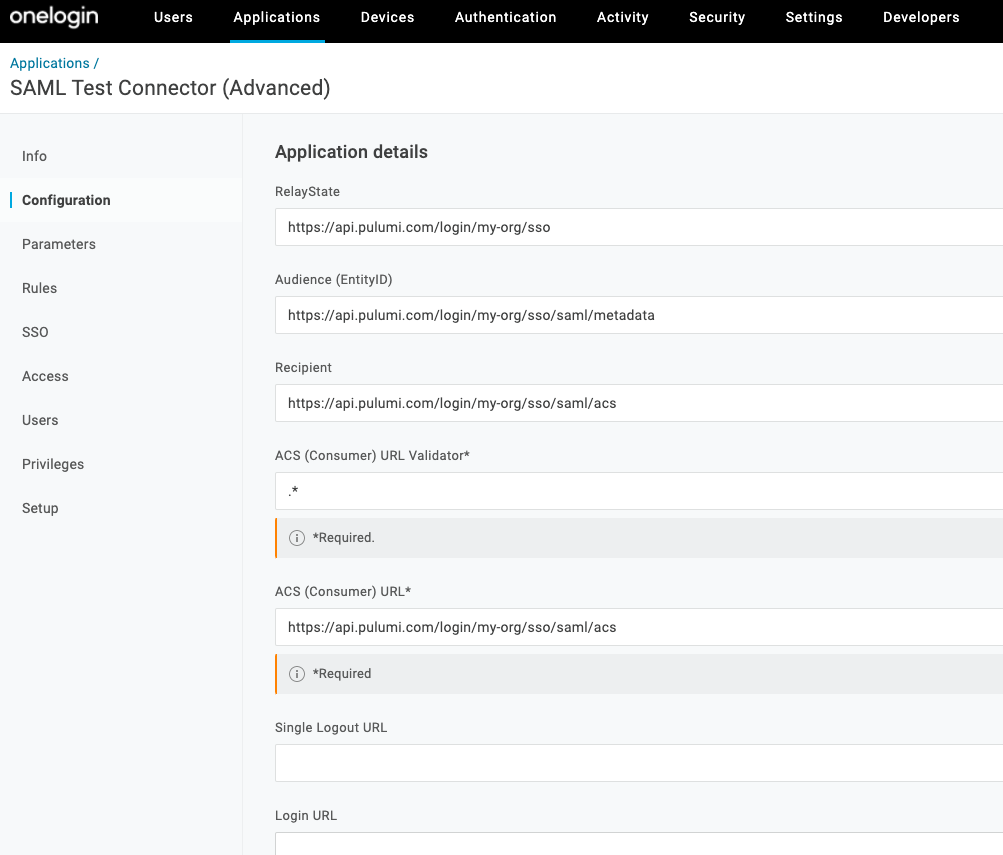
Configure SSO settings
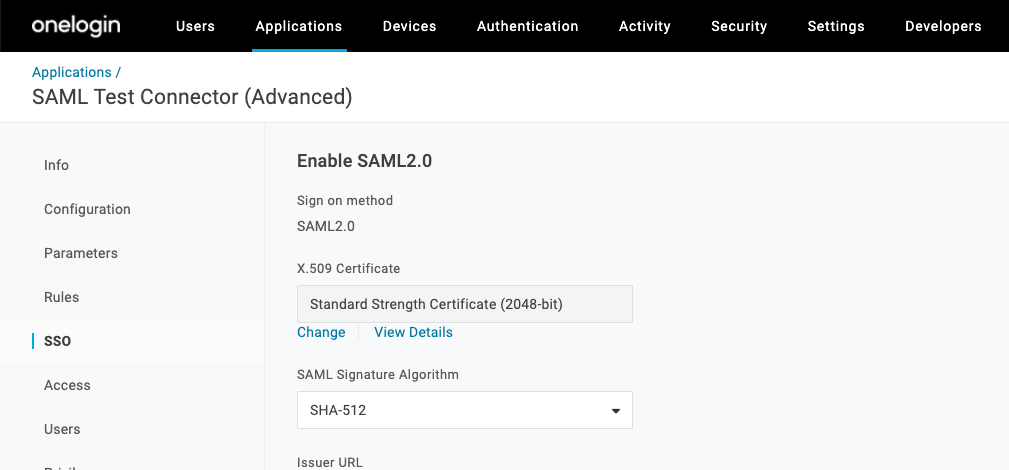
Select the SSO view for the application and set/confirm the following:
| SSO Settings | Value |
|---|---|
| SAML Signature Algorithm | SHA-512 |
User assignments
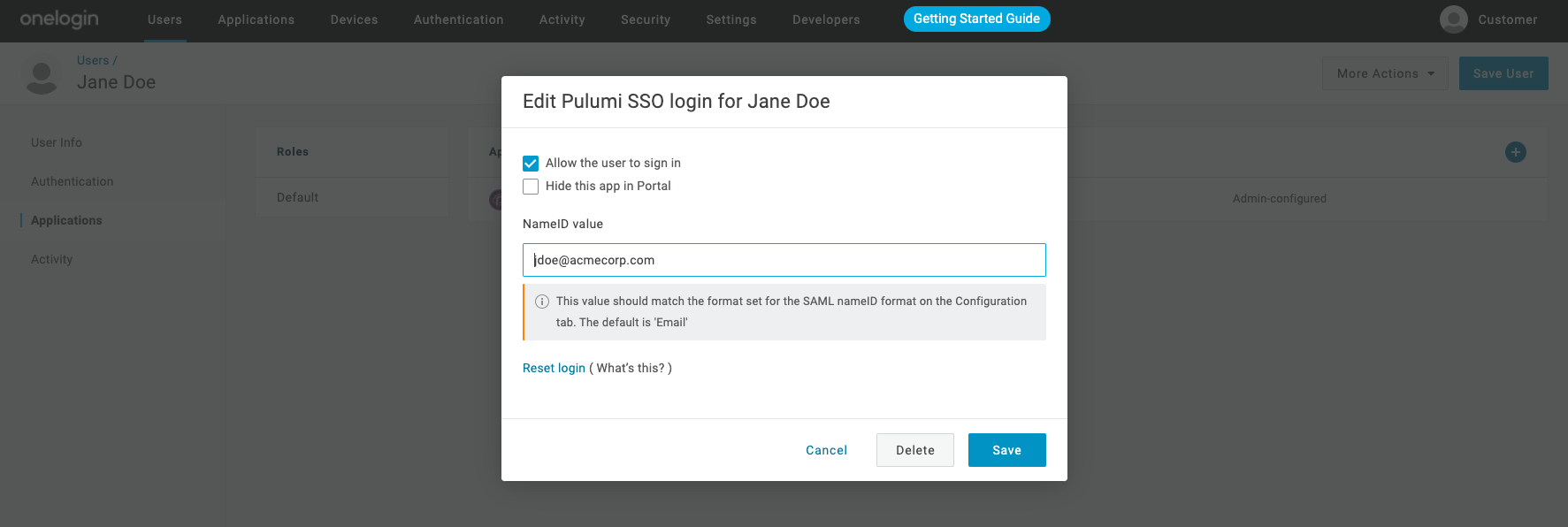
After the Pulumi SAML application has been created in OneLogin, the next step is to assign users to it. This will grant specific users or groups access to sign into Pulumi with their OneLogin-provided credentials.
To assign users or groups to the application, navigate to the Users tab in the OneLogin portal to add users and then assign them to the Pulumi SSO application.
Configuring your Pulumi organization
To configure Pulumi Cloud with details on your new OneLogin-based SAML application, you need to obtain the IdP metadata document from OneLogin and then provide it to Pulumi.
Navigate to the OneLogin Application you created above and select the More Actions drop down menu button and select SAML Metadata to download the metadata XML file.
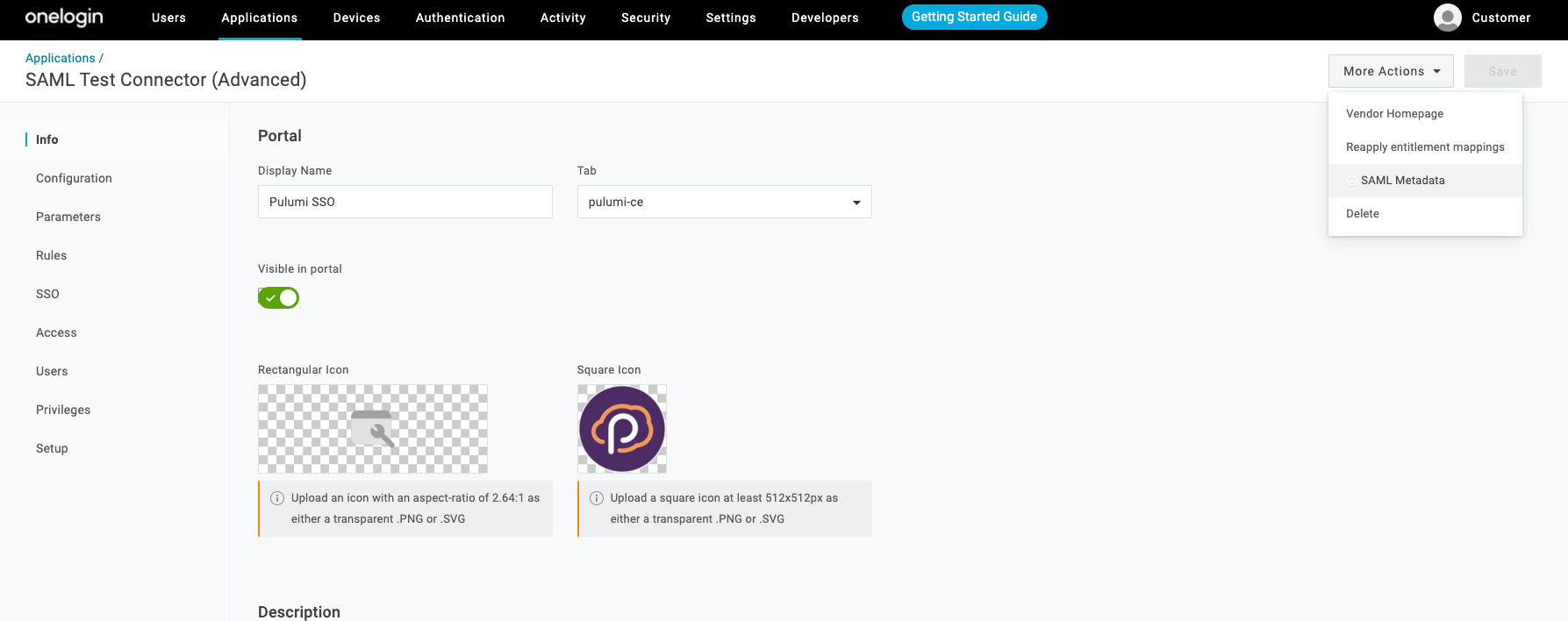
- Open the file and copy the entire block of XML text to your clipboard.
- Sign in to Pulumi Cloud and navigate to your organization.
- Select Settings > Access Management.
- Select the Other tab.
- In the Membership Requirements section, select Change requirements.
- Select SAML SSO and then Next.
- Paste the IdP metadata XML into the text area.
- Select Apply changes.
Signing in to Pulumi using OneLogin
Members of your OneLogin application can now sign in to Pulumi. Navigate to https://app.pulumi.com/signin/sso/ and enter the name of your Pulumi organization.
Troubleshooting
For help resolving SAML SSO configuration issues, see the SAML SSO troubleshooting guide or contact support.
Thank you for your feedback!
If you have a question about how to use Pulumi, reach out in Community Slack.
Open an issue on GitHub to report a problem or suggest an improvement.