SAML: Configuring Auth0
This guide walks you through configuring your Auth0 Authentication Platform as a SAML SSO identity provider (IDP) for Pulumi Cloud.
Enabling SAML for your Auth0 authentication platform
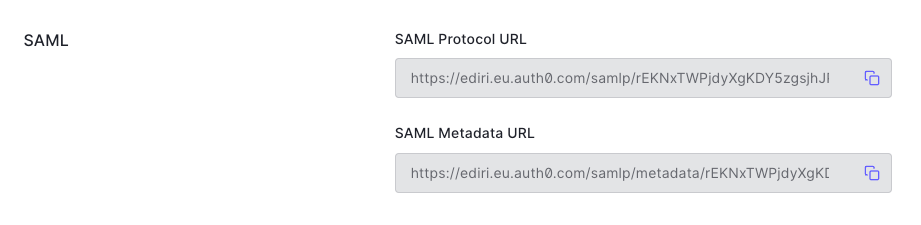
To enable SAML for your Auth0 Authentication Platform, navigate to the Applications section of your Auth0 dashboard. You may need to create a new application or select an existing application. Next, we need to get the SAML metadata XML to configure Pulumi. For this, navigate to the Settings tab of your application and scroll down to the Advanced Settings section.

Expand the Advanced Settings section and click on the Endpoints tab. In the Endpoints tab, scroll down to
the SAML section. Copy the SAML Metadata URL link and download the metadata XML file via
the browser or a command line tool like curl.
Finally, in the Settings tab of your application, navigate to the Application URIs section. In the Application Login URI field, enter the URL of your Pulumi organization in the following format:
https://api.pulumi.com/login/{orgName}/sso/saml/acs
where {orgName} is the name of your Pulumi organization. Additionally, in the Allowed Callback URLs field, enter
the same URL.
Configuring your Pulumi organization
To configure Pulumi with the SAML metadata:
- Sign in to Pulumi Cloud and navigate to your organization.
- Select Settings > Access Management.
- Select the Other tab.
- In the Membership Requirements section, select Change requirements.
- Select SAML SSO and then Next.
- Paste the contents of the downloaded XML file into the text area.
- Select Apply changes.
Troubleshooting
Auth0 troubleshooting: SAML app error messages
For additional help, see the SAML SSO troubleshooting guide or contact support.
Thank you for your feedback!
If you have a question about how to use Pulumi, reach out in Community Slack.
Open an issue on GitHub to report a problem or suggest an improvement.