Get started with Pulumi and Kubernetes
Deploy to Kubernetes
Now run pulumi up to start deploying your NGINX deployment:
$ pulumi up
> pulumi up
This command first shows you a preview of the changes that will be made:
Previewing update (dev):

     Type                              Name            Plan
 +   pulumi:pulumi:Stack               quickstart-dev  create
 +   └─ kubernetes:apps/v1:Deployment  nginx           create

Resources:
    + 2 to create

Do you want to perform this update?
> yes
  no
  details
No changes have been made yet. You may decline to proceed by selecting no or choose details to see more information about the proposed update like your deployment’s properties.
Performing the update
To proceed and deploy your NGINX deployment, select yes. This begins an update:
Do you want to perform this update? yes
Updating (dev):

     Type                              Name            Status
 +   pulumi:pulumi:Stack               quickstart-dev  created (3s)
 +   └─ kubernetes:apps/v1:Deployment  nginx           created (2s)

Outputs:
    name: "nginx-bec13562"

Resources:
    + 2 created

Duration: 4s
Updates can take some time since they wait for the Kubernetes resources to finish being created. The deployment will finish in just a few seconds.
-bec13562) are the result of auto-naming,
a feature that lets you use the same resource names across multiple stacks without naming collisions. You can
disable or fine-tune this. To learn how, read more about
auto-naming.If you get the error configured Kubernetes cluster is unreachable or
unable to load schema information from the API server, verify your cluster access:
- Check your kubeconfig:
kubectl config view - Test cluster connectivity:
kubectl cluster-info - Verify authentication:
kubectl auth can-i get pods
If these commands fail, return to the Configure access step to set up your Kubernetes cluster and kubectl.
View your update on Pulumi Cloud
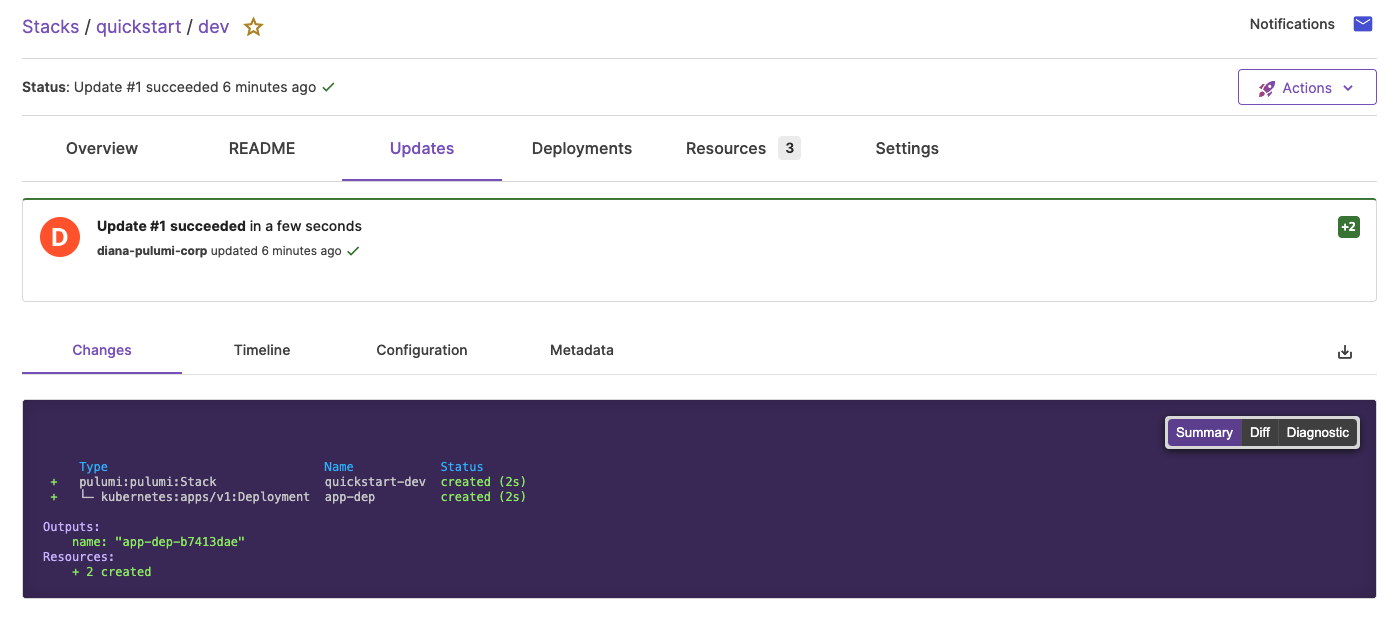
If you are logged into Pulumi Cloud, you’ll see “View Live” hyperlinks in the CLI output during your update. These go to a page with detailed information about your stack including resources, configuration, a full history of updates, and more. Navigate to it to review the details of your update:
Now that the NGINX deployment has been provisioned, you’ll update it to do something more interesting.
Thank you for your feedback!
If you have a question about how to use Pulumi, reach out in Community Slack.
Open an issue on GitHub to report a problem or suggest an improvement.