GitLab
Pulumi integrates with GitLab across multiple products. Here’s what you can do.
Merge request previews
Pulumi can post infrastructure preview output as notes on GitLab merge requests, so your team can review planned changes before they’re applied.
There are two ways to set up merge request previews:
- GitLab Group Access Token (Premium/Ultimate plans) — simpler to configure, not tied to a specific user
- User OAuth Token (all plans) — requires a webhook configuration
Integrating via GitLab Group Access Token
If you are a Premium or Ultimate GitLab customer, you have access to GitLab Group Access Tokens, which Pulumi will use to add Pulumi previews to your merge requests.
In Pulumi Cloud
- Navigate to Settings > Integrations in the Pulumi Cloud dashboard.
- In the GitLab integration card, select Authorize GitLab.
In GitLab
- You will be redirected to GitLab, where you will be asked to approve the integration. Authenticate with your GitLab identity. This authorization is temporary and can be removed later.
Back in Pulumi Cloud
- After approving the integration and being redirected back to Pulumi Cloud, use the dropdown to select the GitLab organization you would like to integrate with and select Save.
- The authorization between the GitLab organization and Pulumi is now complete. Optionally, you can disassociate your personal GitLab identity from Pulumi by selecting your identity in the top right corner of the integration card, then selecting Remove Identity.
Configuring the GitLab pipeline
For the Pulumi preview command to run, you need to add a GitLab pipeline file to your project. If you are already using pipelines, you just need to update your pipeline file.
In Pulumi Cloud
- Generate a Pulumi access token using the account that you would like to post the merge request notes. Save this token for use in the next step.
In GitLab
Set the newly generated token as a CI Variable for your project. Name it
PULUMI_ACCESS_TOKEN.In your GitLab project, create a
.gitlab-ci.ymlfile if one doesn’t already exist.Add the following content to the
.gitlab-ci.ymlfile, updatingpulumi/gitlab-demo/devto be the path to your stack:image: pulumi/pulumi-go:latest stages: - pulumi preview: stage: pulumi script: - pulumi preview -s pulumi/gitlab-demo/dev only: - merge_requestCommit the file.
Configuring the GitLab webhook
In Pulumi Cloud
- Create a Pulumi access token using the account that you would like the merge request notes to be posted as. Save this token for use in the next step.
In GitLab
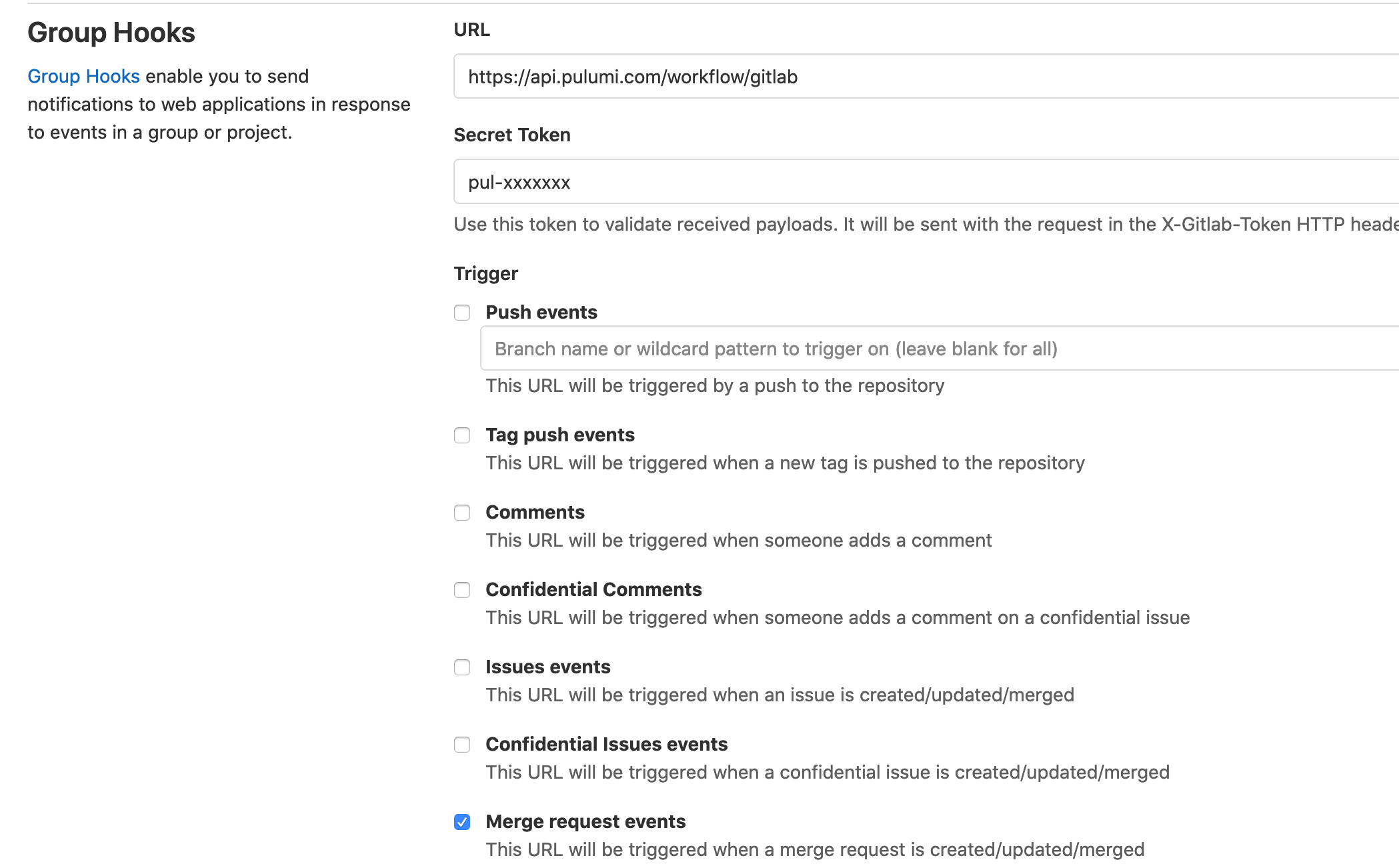
You can configure a Group Hook or a Project Hook. The configuration values are the same regardless of where the webhook is registered. Configuring a webhook at the Group level means you don’t have to configure it for every project manually.
Navigate to Settings > Webhooks in your GitLab Group or Project.
Fill out the form as follows:
- URL:
https://api.pulumi.com/workflow/gitlab - Secret Token: The Pulumi access token you created above
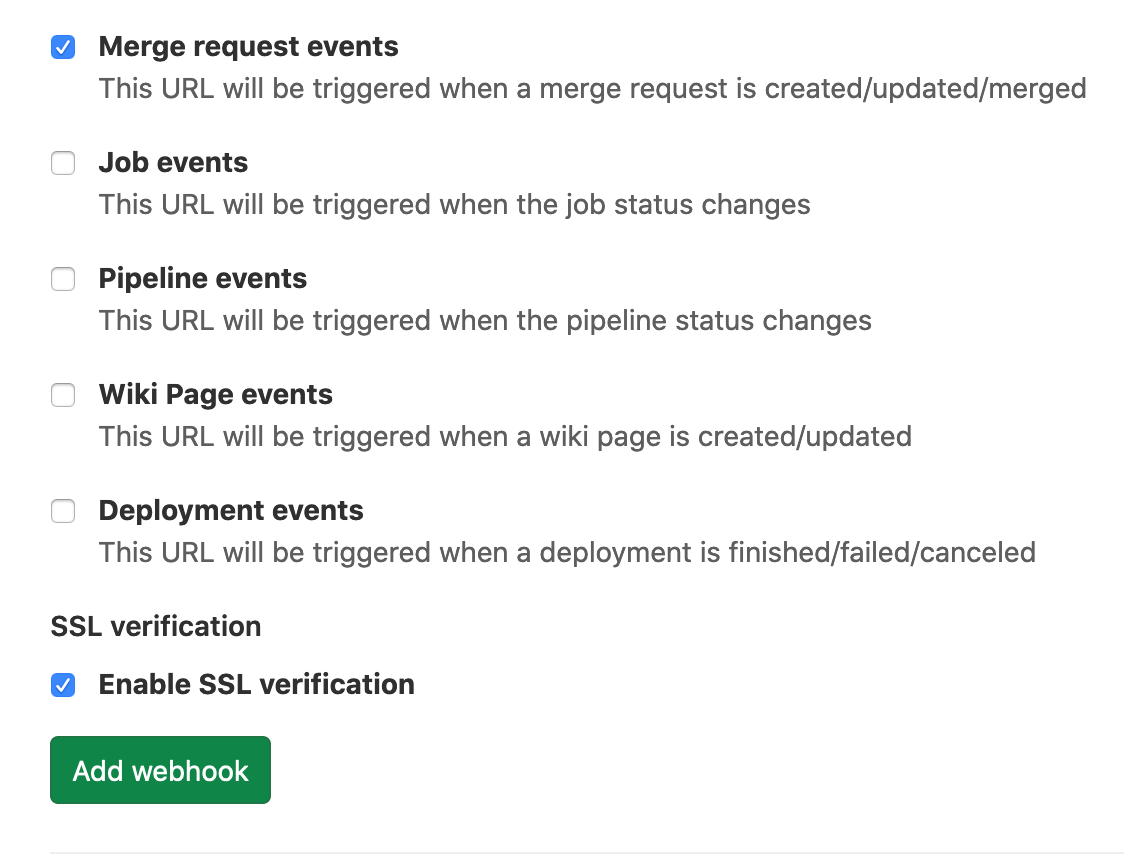
- Uncheck all trigger boxes and check only Merge request events
- URL:
Ensure the checkbox under SSL verification is checked.
Click Add webhook.
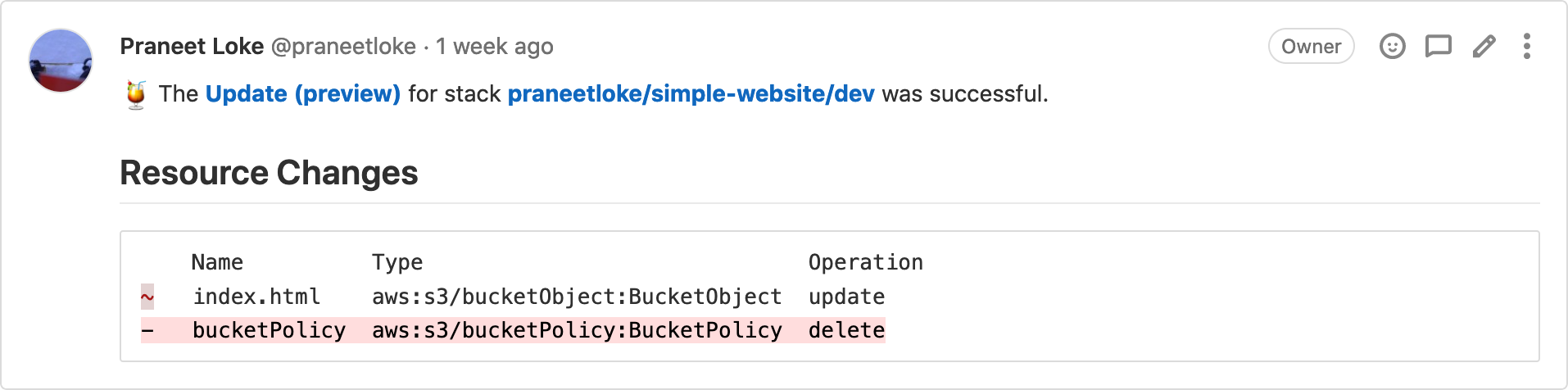
Now when you create a merge request and run Pulumi in a merge request pipeline, you will see notes in the MR that show a summary of the Pulumi preview.
Disabling merge request previews
To disable the integration for a specific execution of Pulumi, set the PULUMI_DISABLE_CI_DETECTION environment variable to false without removing the integration configuration itself.
GitLab CI
Run Pulumi commands directly in GitLab CI/CD pipelines to preview and deploy infrastructure on every commit or merge request. See the GitLab CI guide for setup instructions and example pipeline configurations.
OIDC authentication
Use GitLab CI’s built-in OIDC tokens to authenticate with Pulumi Cloud without storing long-lived credentials as CI variables. See Configuring OpenID Connect for GitLab for configuration details.
Template source
Use GitLab repositories as template sources for Pulumi IDP. Your teams can reference GitLab-hosted Pulumi templates when creating new projects through the developer portal. Note that destination repositories for new projects can only be created on GitHub, even when the source template is hosted on GitLab.
Pulumi Deployments
Trigger Pulumi Deployments from GitLab CI by calling the Deployments REST API from your GitLab CI job. Native push-to-deploy from GitLab repositories is not currently supported; that feature requires the Pulumi GitHub App.
Thank you for your feedback!
If you have a question about how to use Pulumi, reach out in Community Slack.
Open an issue on GitHub to report a problem or suggest an improvement.