


Deploy with Pulumi button
The “Deploy with Pulumi” button lets you easily create new Pulumi projects from the browser. You can embed the button in README files within GitHub repositories or gists, blog posts, or other web pages.
For example, select the Deploy button to configure and create a new empty JavaScript project:

Rather than right-clicking the button to recover its image URL, copy the Markdown snippet below and drop it straight into a README, gist, or blog post:
[](https://app.pulumi.com/new?template=https://github.com/pulumi/templates/javascript)
Swap the template query parameter for the URL of your own project template to point the button at your repository instead. See Creating a Pulumi button for the full Markdown and HTML forms, plus the SVG and PNG image URLs.
To create a Deploy with Pulumi button:
- Include optional template metadata in your
Pulumi.yaml. - Create a button in Markdown or HTML.
Preparing your template
The “Deploy with Pulumi” button works with project templates hosted in public or private GitHub repositories or gists.
A template is a Pulumi project that has the required Pulumi.yaml file describing the project. The project template can be in the root of the GitHub repository, or within a subdirectory. Multiple projects can be hosted within subdirectories of a single repository.
A large number of templates are provided by Pulumi in https://github.com/pulumi/examples and https://github.com/pulumi/templates.
To learn more about building your own custom templates, see Custom Templates.
Testing
You can test your template via the Pulumi CLI or a web browser.
CLI
$ pulumi new https://github.com/pulumi/examples/aws-ts-s3-folder
Browser
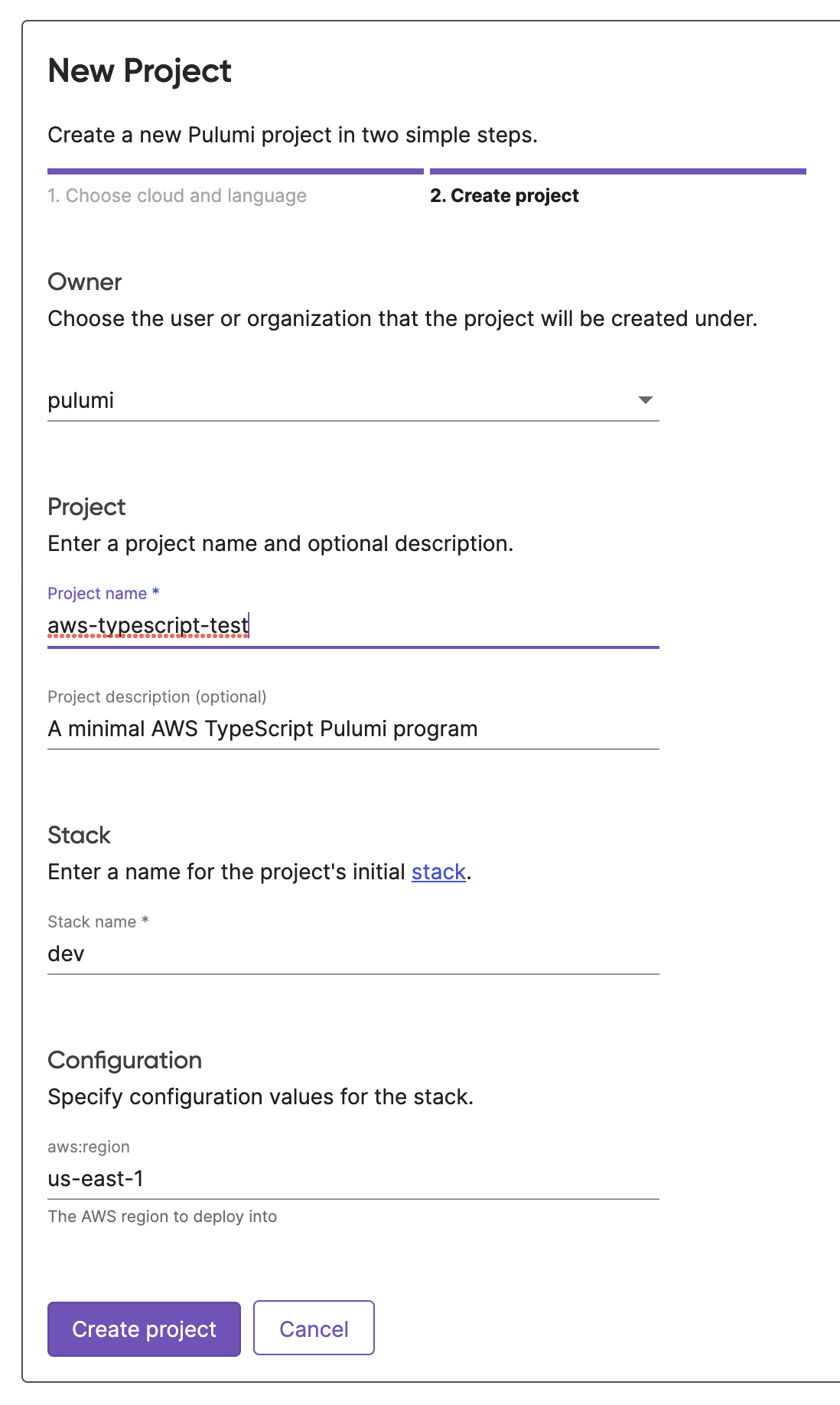
https://app.pulumi.com/new?template=https://github.com/pulumi/examples/aws-ts-s3-folder
Creating a Pulumi button
After you’ve verified your project template works as expected, you can add a button to the README in your repository or gist. You will need to specify a template parameter that points to the project.
Here’s an example in Markdown:
[](https://app.pulumi.com/new?template=https://github.com/pulumi/examples/aws-ts-s3-folder)
Or, the equivalent HTML:
<a href="https://app.pulumi.com/new?template=https://github.com/pulumi/examples/aws-ts-s3-folder">
  <img src="https://www.pulumi.com/images/deploy-with-pulumi/button.svg" alt="Deploy">
</a>
Use the fully qualified image URL rather than a relative path — a relative path only resolves on pulumi.com and renders as a broken image once the snippet is pasted into a README hosted elsewhere.
Button image
The button works on light and dark backgrounds, so there’s no theme variant to pick. Use either the SVG or the PNG:
https://pulumi.com/images/deploy-with-pulumi/button.svghttps://pulumi.com/images/deploy-with-pulumi/button.png
The SVG is the better choice in most cases, since it stays sharp on high-density displays.
Older snippets may point at light.svg, light.png, dark.svg, or dark.png. Those URLs still work, and they now serve this same button, so there’s nothing you need to change.
Custom Git branches
You can use a fully qualified GitHub URL with the template parameter to reference the template at a specific Git branch, tag, or commit:
https://github.com/pulumi/examples/tree/master/aws-ts-s3-folder