


Get started with Pulumi Policies
Pulumi Policies enforces compliance, security, and best practices across your cloud infrastructure, whether managed by Pulumi, provisioned by other tools, or created manually.
Policy enforcement is applied in two ways:
- Preventative: Blocking non-compliant resources before deployment during Pulumi stack updates
- Audit: Continuously scan existing resources discovered through Discovery to identify violations
This guide walks you through getting started with Pulumi Policies using both preventative and audit policies.
Prerequisites
To follow this guide, ensure you have:
- Access to Pulumi Cloud with Policy enabled for your organization.
- For preventative policies: One or more Pulumi stacks.
- For audit policies: Cloud accounts connected via Discovery.
- Organization admin permissions to configure policies.
Understanding the Policies page
The Policy configuration page is the central hub for managing Pulumi Policies. To get there, navigate to Governance > Policy configuration in the left navigation.
The page displays two tabs: Policy Packs and Policy Groups.
Policy Packs
The Policy Packs tab lists every policy pack available to your organization, with its publisher, provider, latest version, and the number of stacks and accounts it’s applied to. This includes:
- Custom policy packs you’ve authored and published
- Pre-built policy packs that Pulumi publishes, for the packs your edition includes. You don’t need to add them to your organization before using them.
Select any policy pack to see its details across three tabs:
- Overview: Displays pack metadata including name, publisher, version, source, and tags
- Policies: Lists individual policies in the pack with their descriptions and enforcement levels
- Entities Applied: Shows which stacks or accounts use this pack and which policy groups apply it
Policy Groups
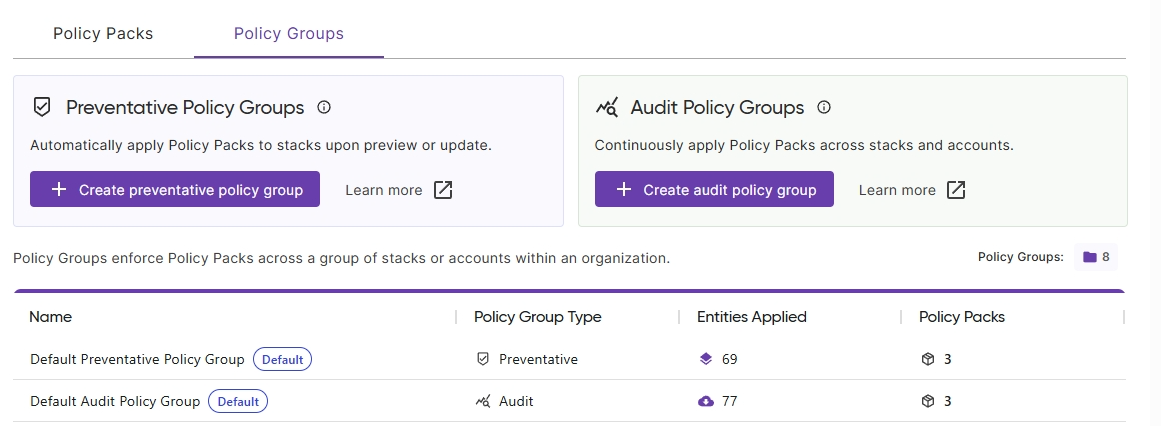
Policy groups enforce policy packs across stacks or accounts within your organization. The Policy Groups tab displays two types:
- Preventative Policy Groups: Automatically apply policy packs to stacks during
pulumi previeworpulumi up - Audit Policy Groups: Continuously apply policy packs to discovered cloud resources across accounts
The policy groups table shows:
- Name: The policy group identifier, with default groups marked with a badge
- Policy Group Type: Either Preventative (for stacks) or Audit (for accounts)
- Entities Applied: Number of stacks or accounts governed by this group
- Policy Packs: Number of policy packs included in this group
Your organization includes a default policy group for each type: default-policy-group for preventative policies, which applies to all stacks, and default-accounts-policy-group for audit policies, which applies to all cloud accounts. These default groups automatically include new stacks and accounts as they’re created, and there are limits on how you can change them. See default policy groups.
Creating a preventative policy group
To create a policy group for stacks:
- Select Create preventative policy group
- Name: Enter a descriptive name for the policy group
- Entities: Select Choose stacks to select which stacks this group will govern
- Policy Packs: Select Select policy packs to choose which policy packs to enforce
- Configure enforcement level (Advisory or Mandatory) for each policy pack
- Select Save Policy Group
Creating an audit policy group
To create a policy group for cloud accounts:
- Select Create audit policy group
- Name: Enter a descriptive name for the policy group
- Entities: Select Choose accounts to select which cloud accounts this group will scan
- Policy Packs: Select Select policy packs to choose which policy packs to enforce
- Configure enforcement level (Advisory or Mandatory) for each policy pack
- Select Save Policy Group
Monitor compliance
After setting up your policy groups, view violations and take action from the Policy Findings page.
To access policy findings:
- Navigate to Governance > Policy findings in the left navigation
- View compliance issues organized by policy, resource, or account
Each policy violation creates an issue that you can act on:
- Assign to team members: Delegate remediation to the appropriate owner
- Fix violations yourself: Update the non-compliant resources directly
- Assign to Pulumi Neo: Let Pulumi’s AI agent analyze and fix the violation automatically
This workflow of setting up policies, monitoring findings, and taking action forms the core compliance management cycle in Pulumi Policies.
For detailed information on managing findings, see Policy Findings.
Learn more
To deepen your understanding of Pulumi Policies:
- Write custom policies: Authoring Guide
- Explore pre-built policy packs: Pre-built Policy Packs
- View and manage policy findings: Policy Findings
- Learn about enforcement modes: Policy Groups
- Configure policy pack settings: Policy Packs
- Understand policy fundamentals: Policy Overview