


SAML: Configuring Google Workspace
This guide walks you through configuring your Google Workspace (formerly known as G Suite) service as a SAML SSO identity provider (IDP) for Pulumi Cloud.
Creating the SAML application
In the administrator console for your Google Workspace domain, open the flyout menu in the upper-left corner and choose Apps > Web and mobile apps.
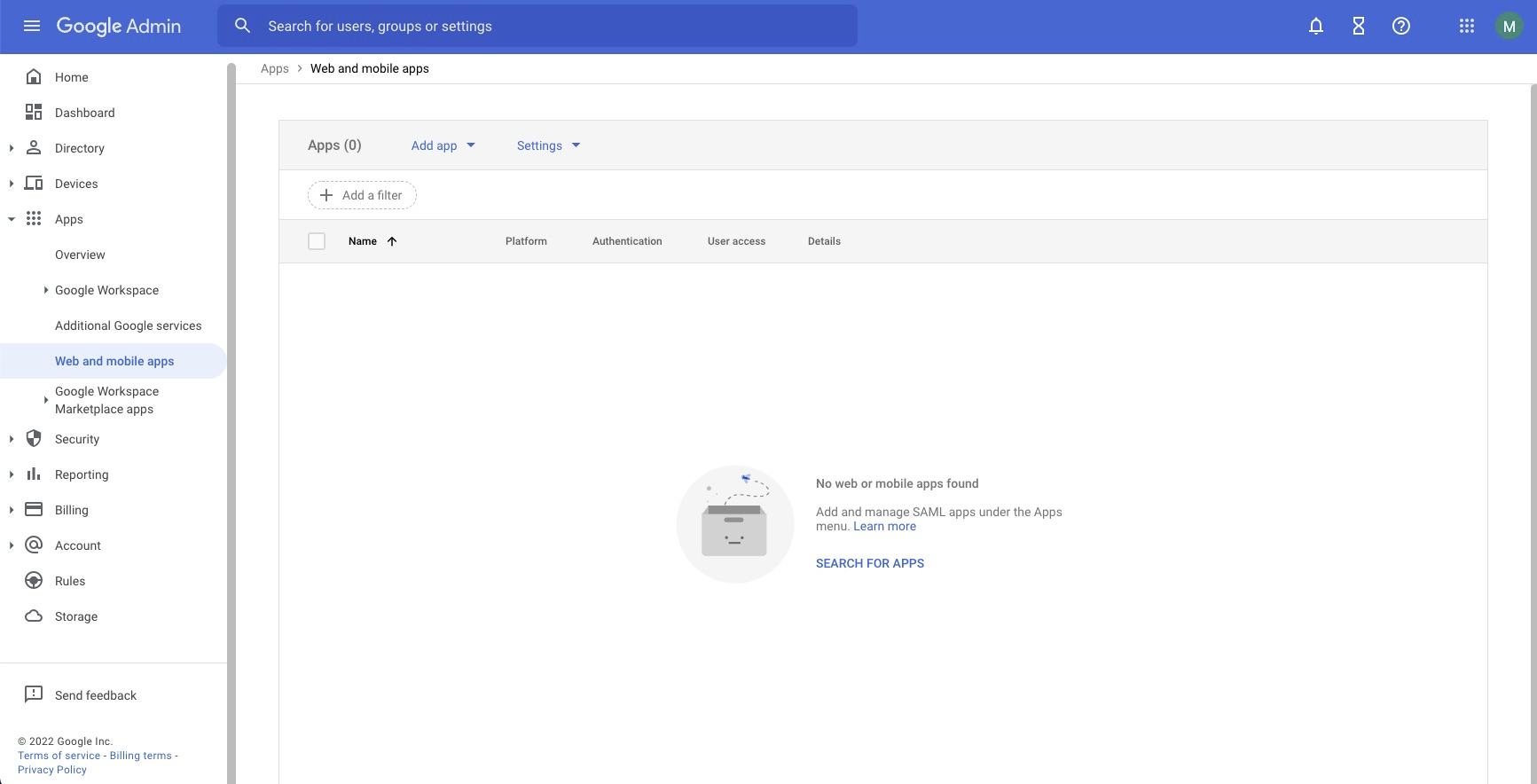
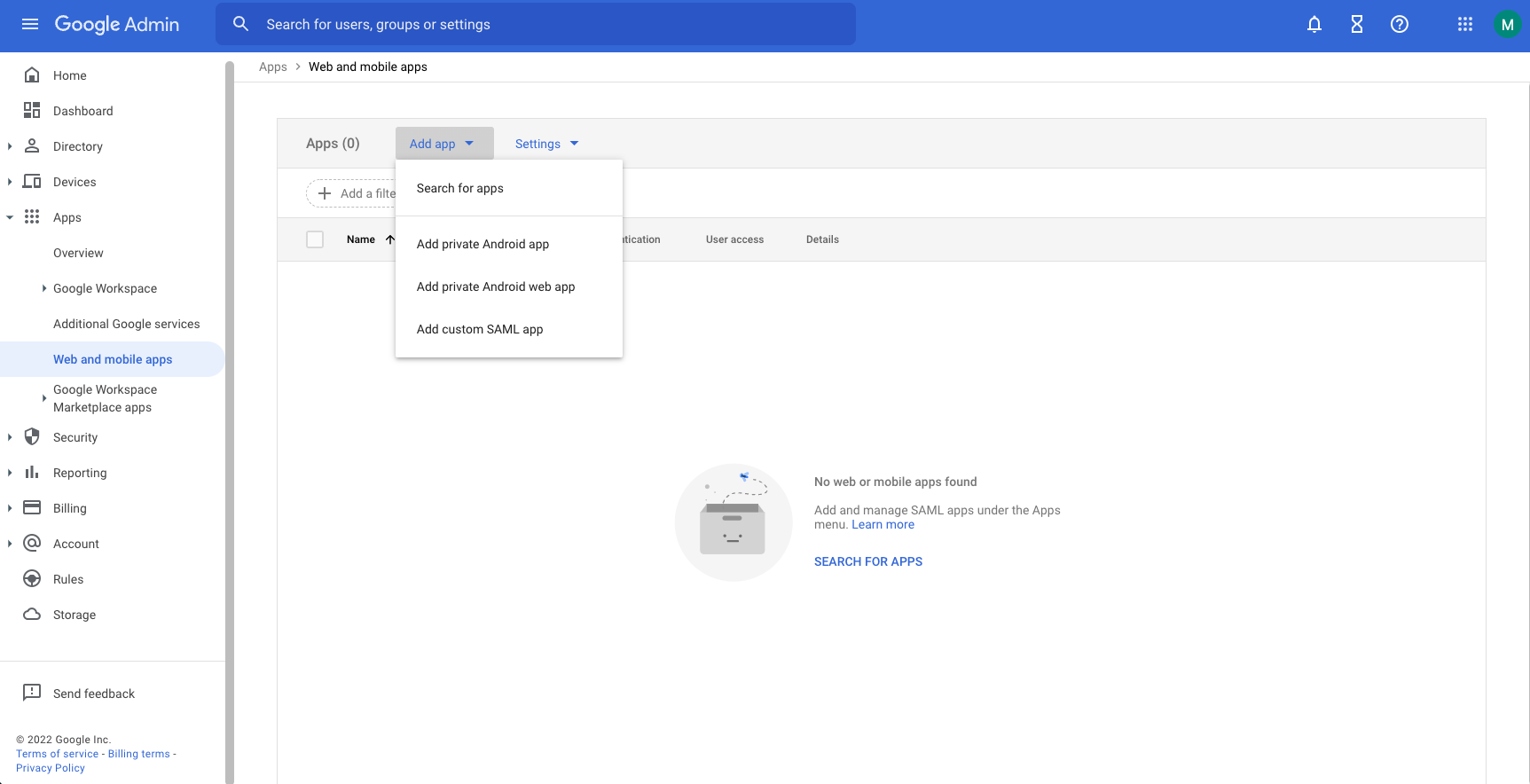
Select Add app > Add custom SAML app to create a new SAML application.
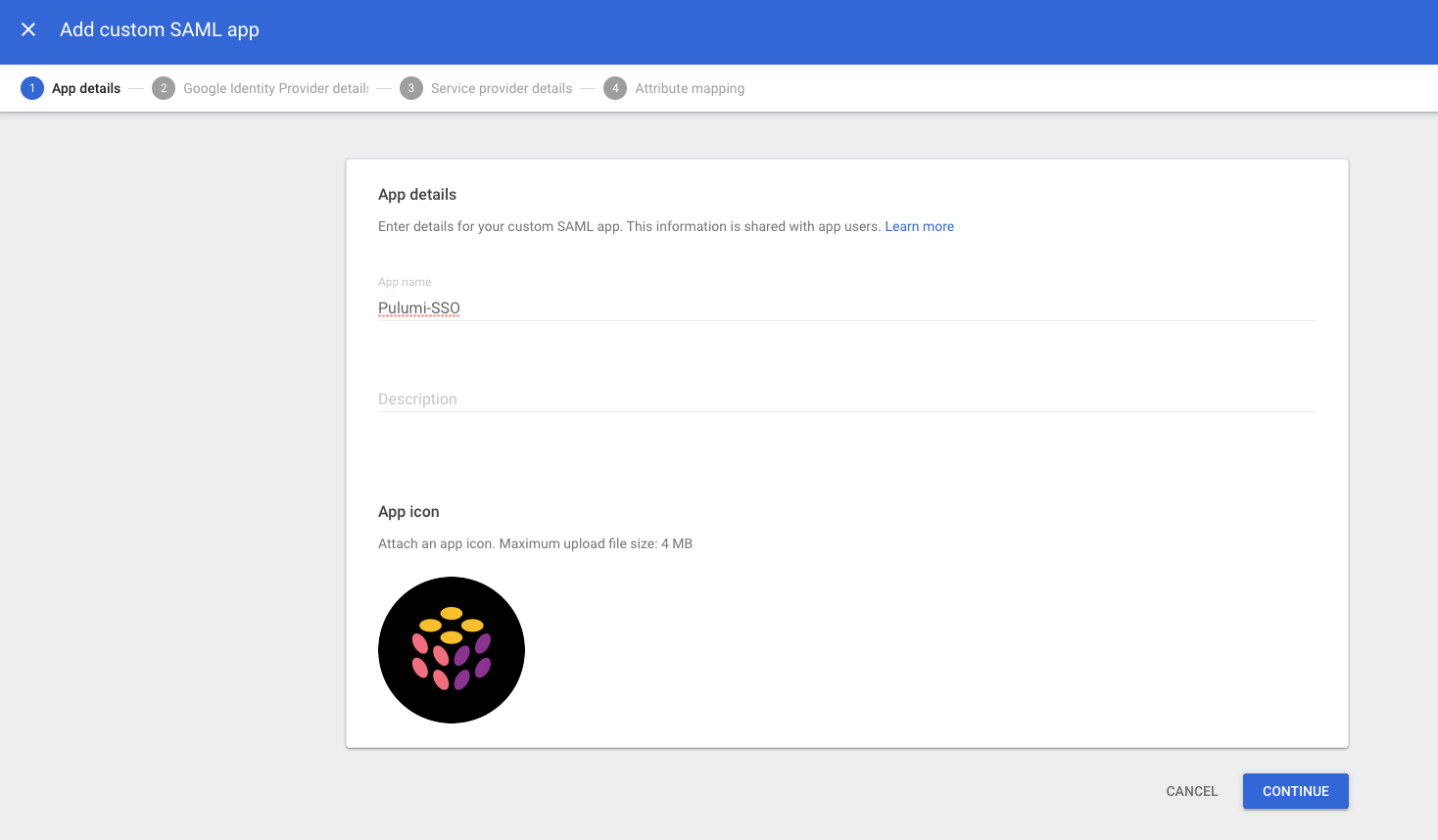
In the first step, give the SAML app a name (e.g., Pulumi-SSO), and optionally add an App Icon, and select Continue. Pulumi Logos has PNG logos available.
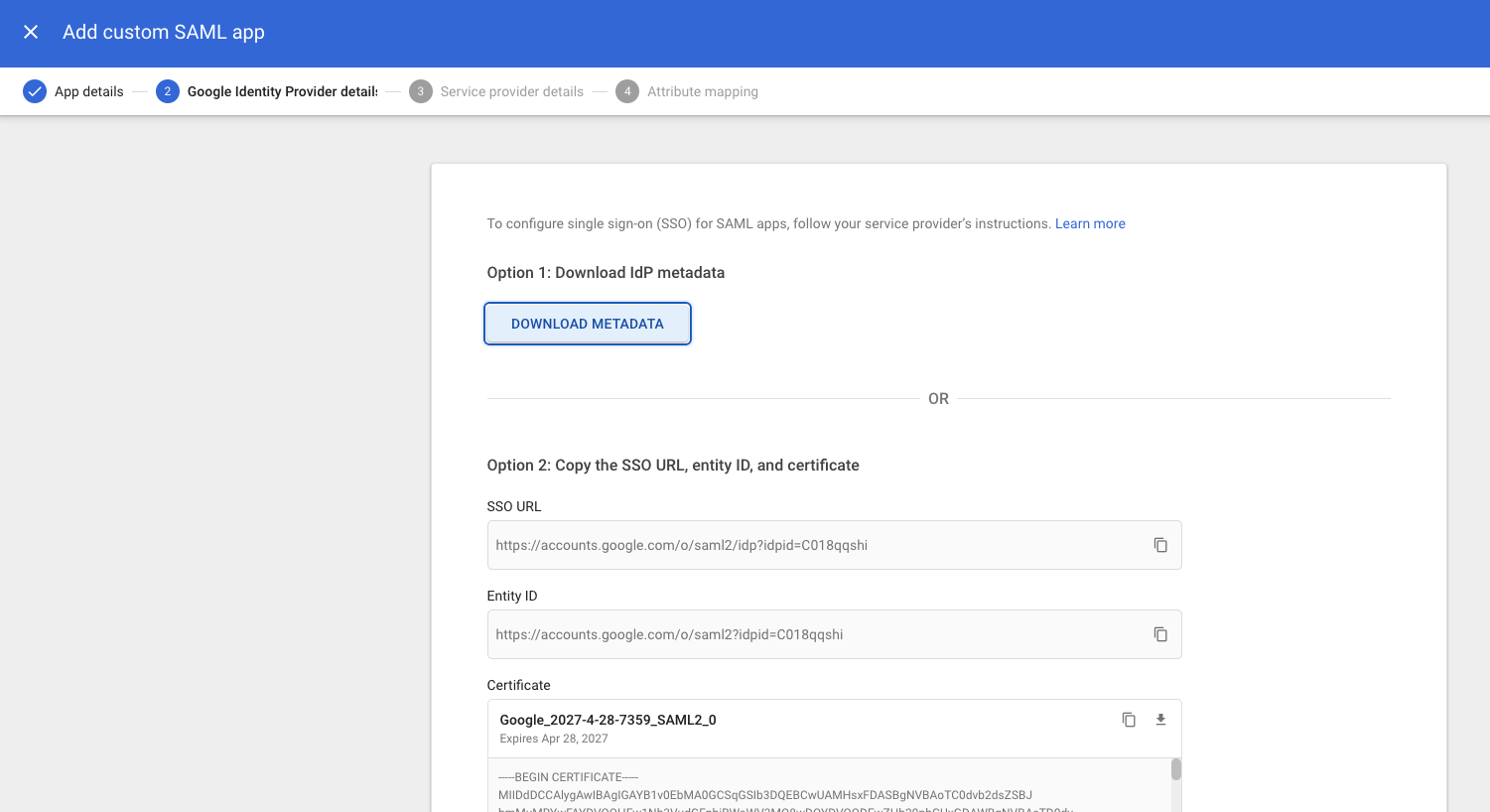
Next, choose Option 1: Download Metadata to download an XML document that identifies and describes your Google Workspace domain as a SAML identity provider. You will need this document to complete the process of configuring your Pulumi organization. For now, note the location of the downloaded file, then select Continue to continue.
In step 3, for the required ACS URL and Entity ID and Start URL fields, enter the fully-qualified URLs of the
acsandmetadataandssoendpoints of the Pulumi API, adjusted for your Pulumi organization name.The values you need to use are dependent upon your Pulumi organization name. Be sure to replace
acmecorpwith your actual organization name.SAML Setting Value ACS URL https://api.pulumi.com/login/<acmecorp>/sso/saml/acsEntity ID https://api.pulumi.com/login/<acmecorp>/sso/saml/metadataStart URL https://api.pulumi.com/login/<acmecorp>/ssoName ID Format EMAILorPERSISTENT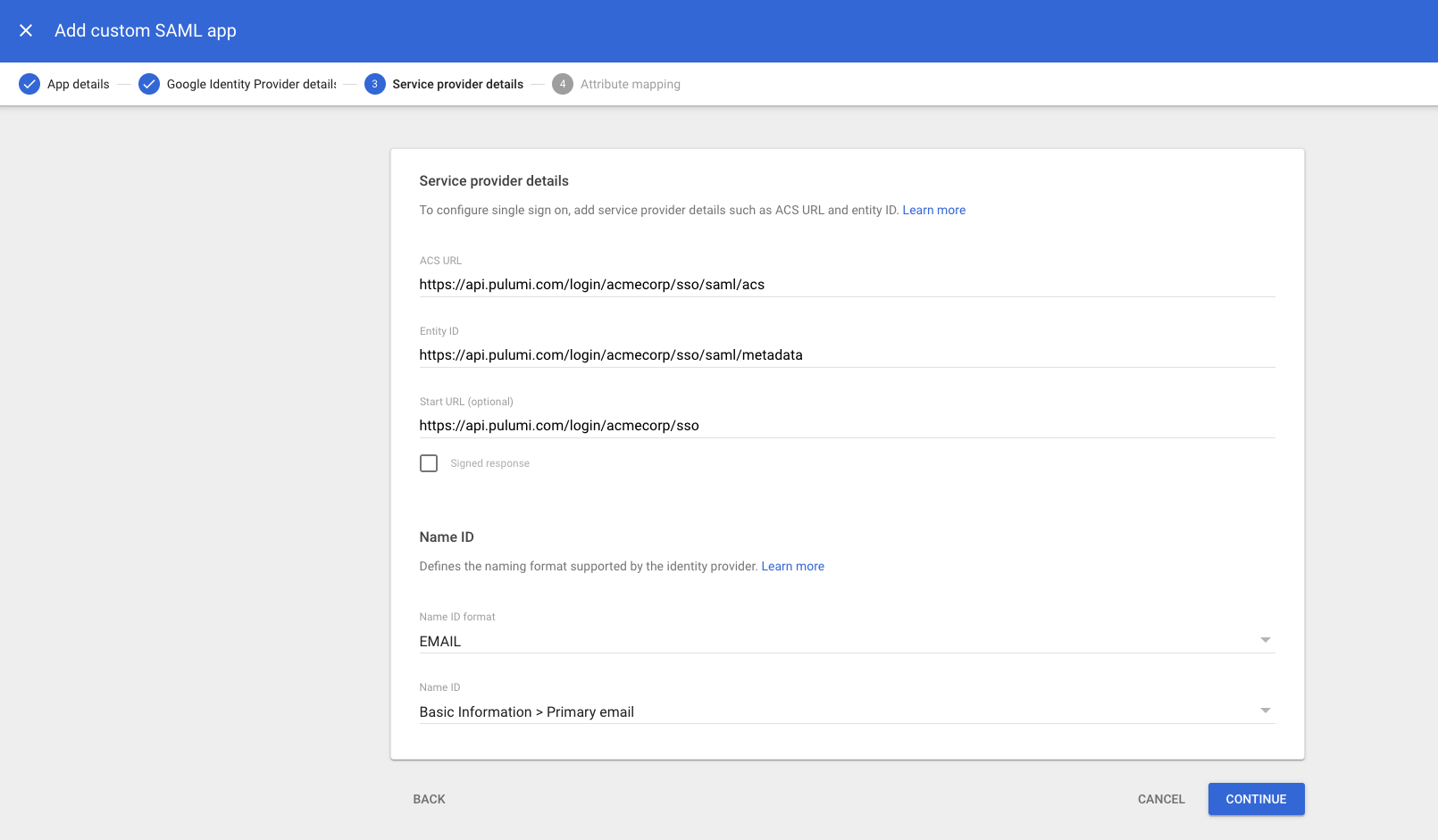
Set
Name ID formatto EMAIL or PERSISTENT. Leave the other fields as their default values, then select Continue.Important: Do not change the value of Name ID Format value once your users have started using Pulumi—not even switching its value between
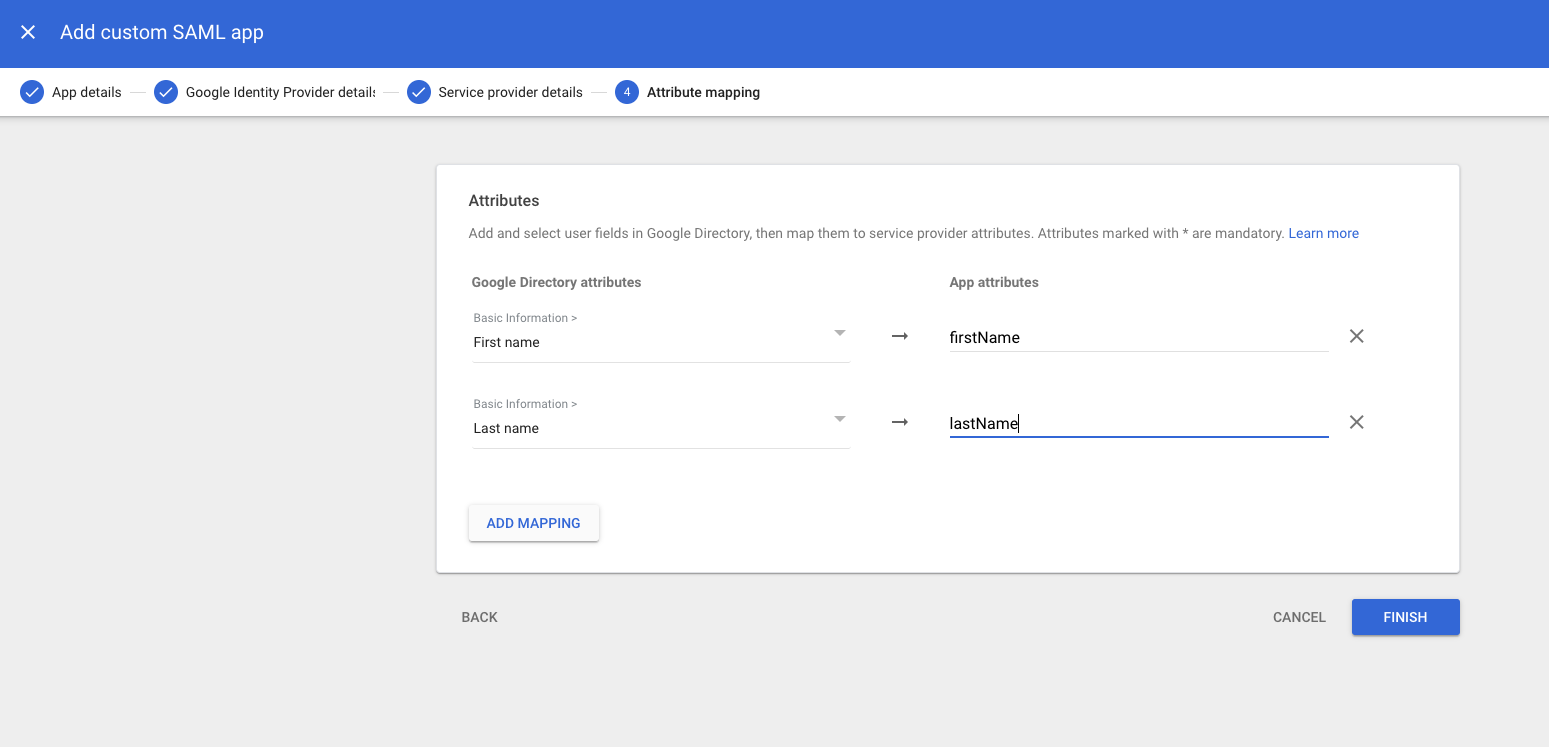
EMAILorPERSISTENT.The final step—attribute mapping—is optional, but you may wish to specify proper first and last names for your Pulumi users, based on their Google account profiles. The Pulumi Cloud expects to receive these fields as
firstNameandlastName, respectively.Once you add them, select Finish.
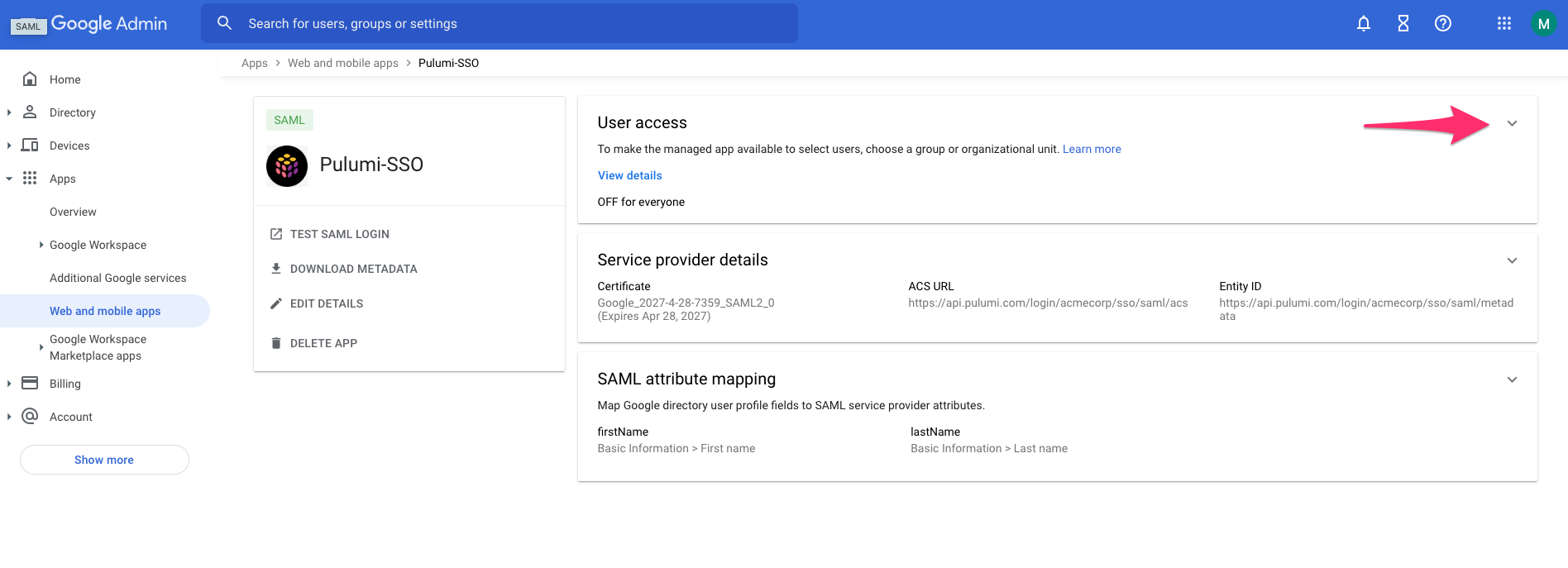
On the next screen, enable your newly created SAML application for your Google domain users by selecting the down arrow in the User access panel:
Select ON for everyone and Save.
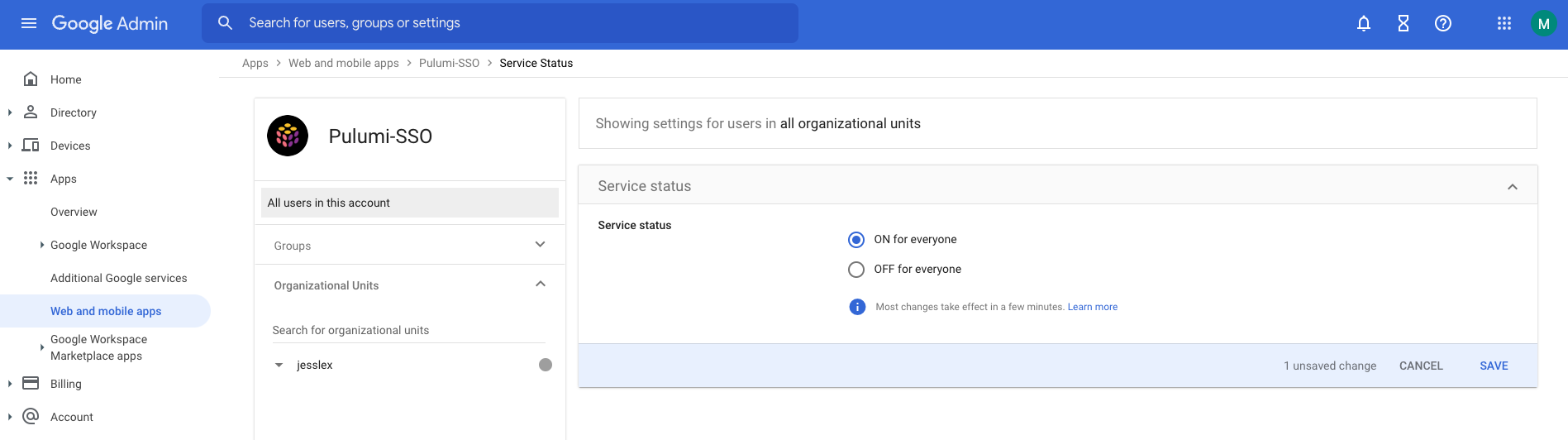
At this point, you’re done configuring Google Workspace, and can move on to completing SAML SSO setup in Pulumi Cloud.
Configuring your Pulumi organization
- Sign in to Pulumi Cloud and navigate to your organization.
- Select Settings > Access Management.
- Select the Other tab.
- In the Membership Requirements section, select Change requirements.
- Select SAML SSO and then Next.
- Paste the full contents of the XML IDP document you downloaded into the text area.
- Select Apply changes.
Your Pulumi organization is now configured to use Google Workspace as a SAML SSO identity provider.
Signing in to Pulumi with Google Workspace
Members of your Google Workspace can now sign in to Pulumi. Navigate to https://app.pulumi.com/signin/sso/ and enter the name of your Pulumi organization.
Troubleshooting
Google Workspace SAML troubleshooting: SAML app error messages
For additional help, see the SAML SSO troubleshooting guide or contact support.